
Overview of AdminSheet Pro
Welcome to AdminSheet Pro, a Google Sheets add-on designed by Google Workspace administrators for Google Workspace administrators. AdminSheet Pro is built to streamline bulk operations using Google Sheets—a simple and familiar interface.
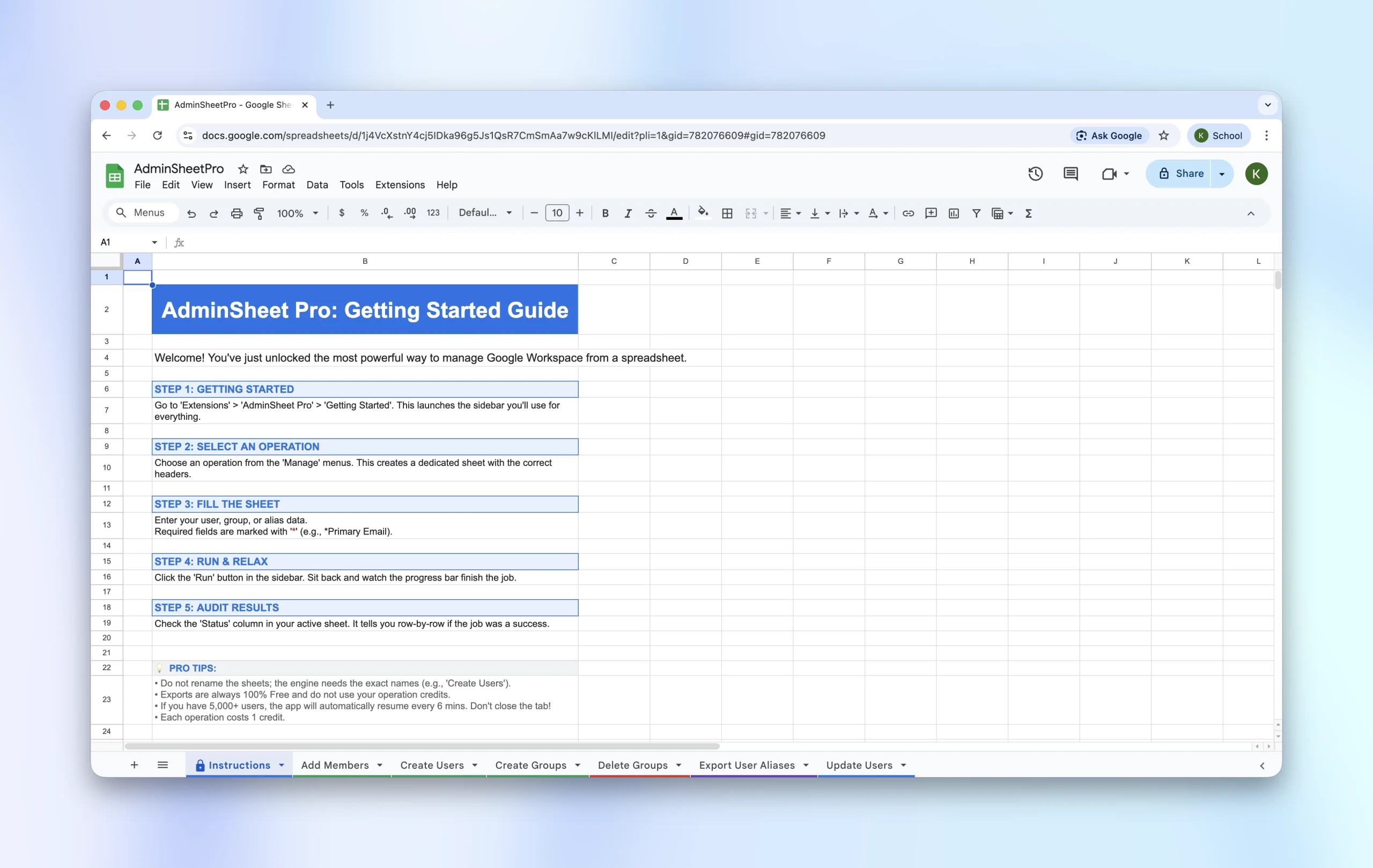
All features of AdminSheet Pro work within the Google Sheets environment that you already know. If you have ever used Okay Goldy, you will already be familiar with how to use AdminSheet Pro.
What Can AdminSheet Pro do?
You can use AdminSheet Pro for three main categories of bulk operations:
- Manage Users
- Manage Groups, and
- Manage Aliases
Let’s quickly look at these operations.
First, install AdminSheet Pro from the Google Workspace Marketplace. You must be an administrator of the domain to install AdminSheet Pro.
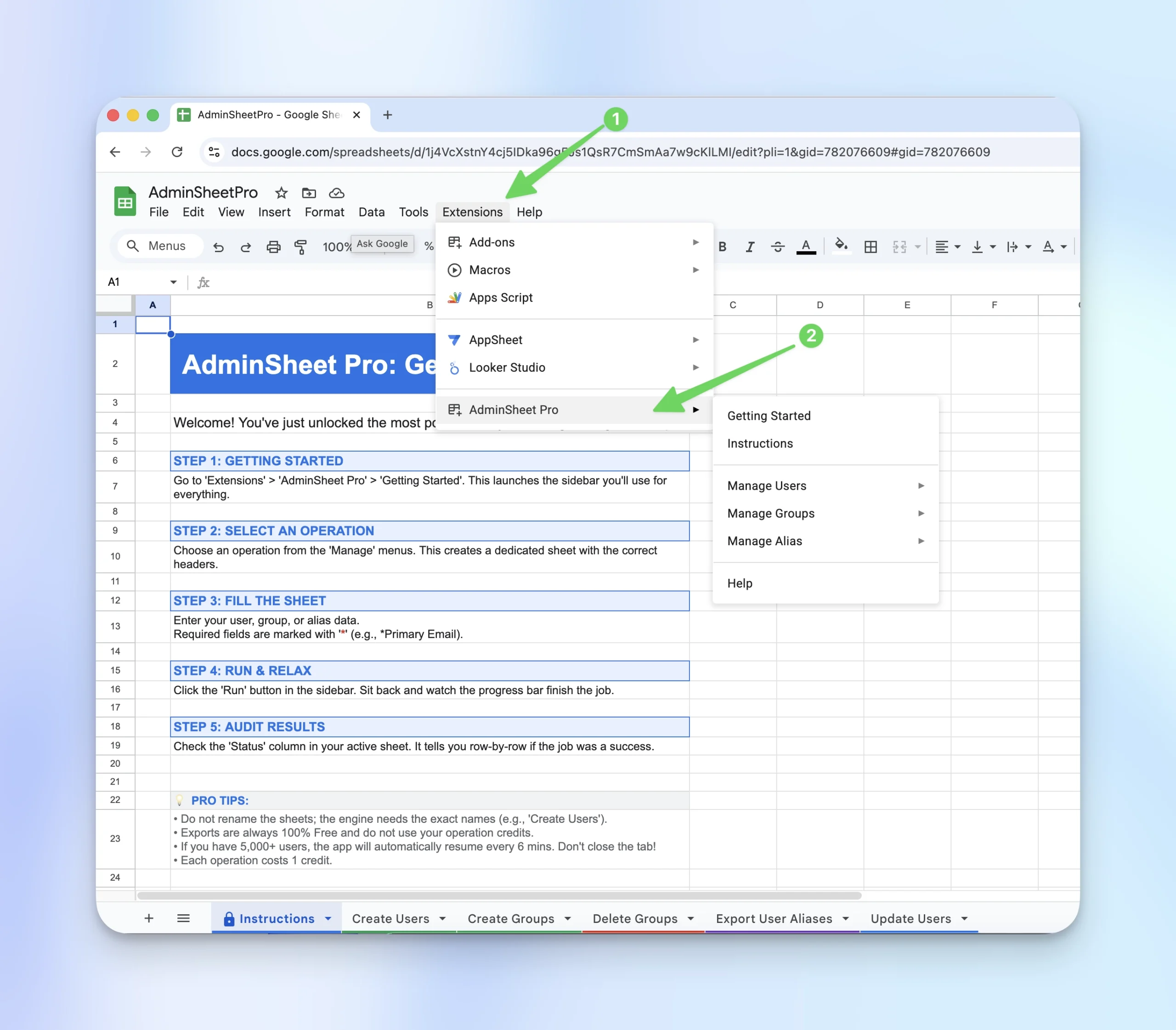
Next, open a Google Sheet and navigate to the Extensions menu. You should see AdminSheet Pro listed as one of your extensions. If you do not see AdminSheet Pro, wait for a minute or two and then refresh the tab.
The sub-menus display the three bulk actions that you can perform: Manage Users, Manage Groups, and Manage Aliases.
User management
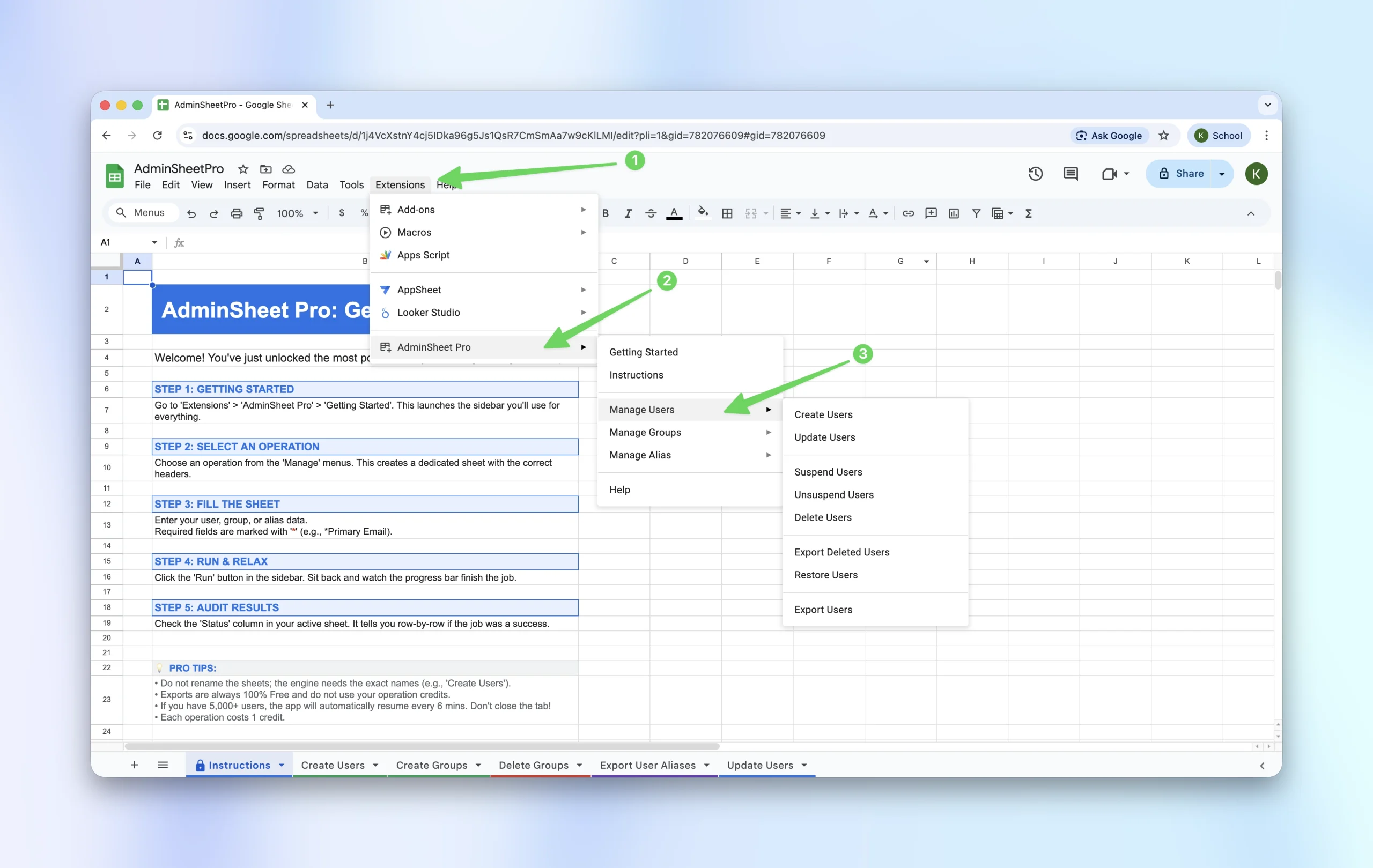
Under Manage Users, you can perform the following:
- Create Users
- Update Users
- Suspend Users
- Unsuspend Users
- Delete Users
- Export Deleted Users
- Restore Users, and
- Export Users
Group Management
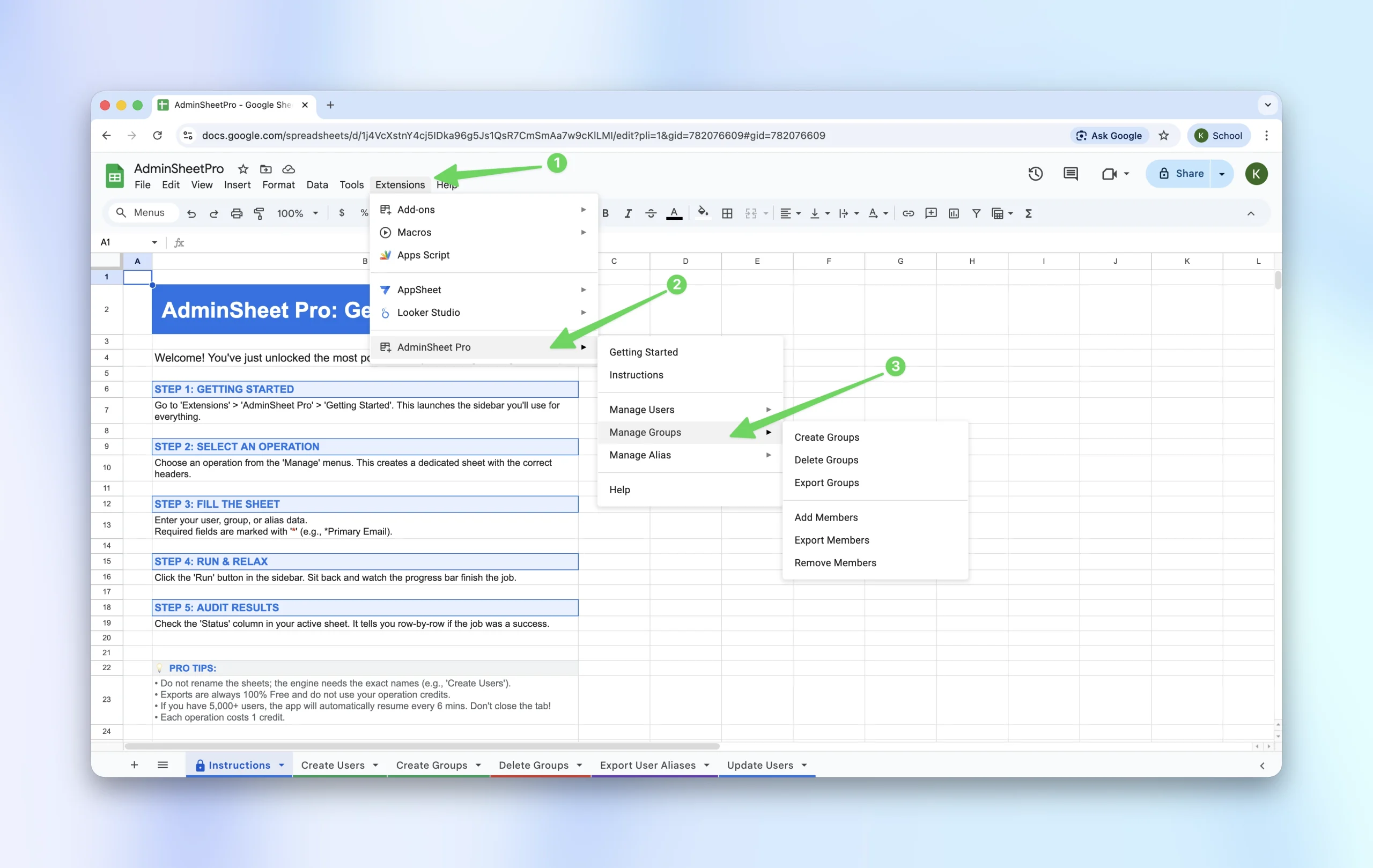
Under Manage Groups, you can perform the following:
- Create Groups
- Delete Groups
- Export Groups
- Add Members
- Export Members, and
- Remove Members
Alias Management
Under Manage Aliases, you can perform the following:
- Create Aliases
- Delete User Aliases, and
- Export User Aliases
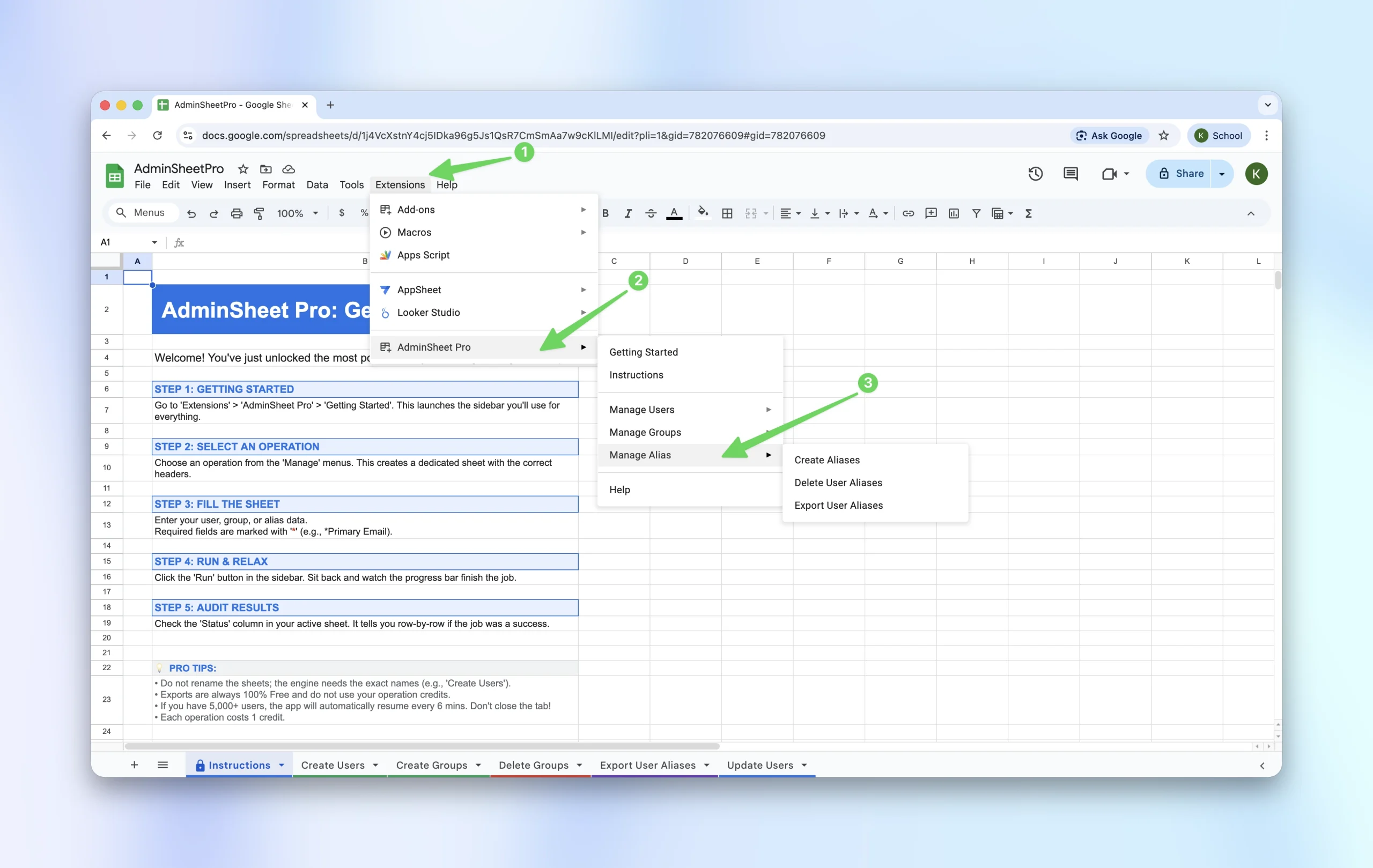
Each function in AdminSheet Pro, such as “Create Users”, is linked to a specific sheet. Selecting a function will automatically create the required sheet and navigate you to it. Please do not rename the sheets after they have been created.
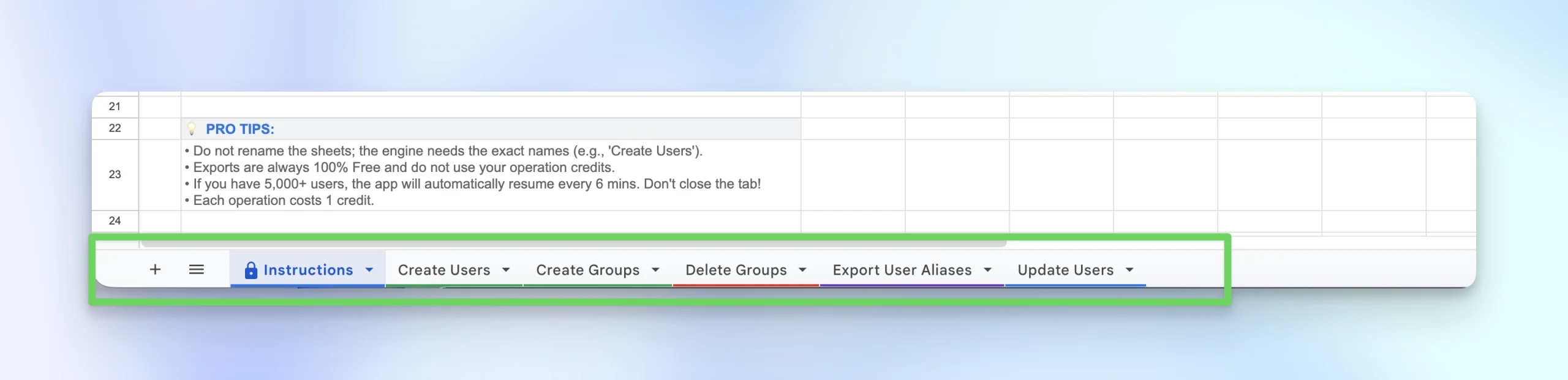
For each sheet, the required fields are marked with an asterisk in the column header; everything else is optional depending on the task.
Let’s try the bulk “Add members to a group” function:
- First, add the email addresses of all the users.
- Next, add the email address of the group you want them added to.
- Finally, add the role you wish to assign to each member within the group.
- Hit the “Run Add Members” button to start the operation and watch AdminSheet Pro go to work.
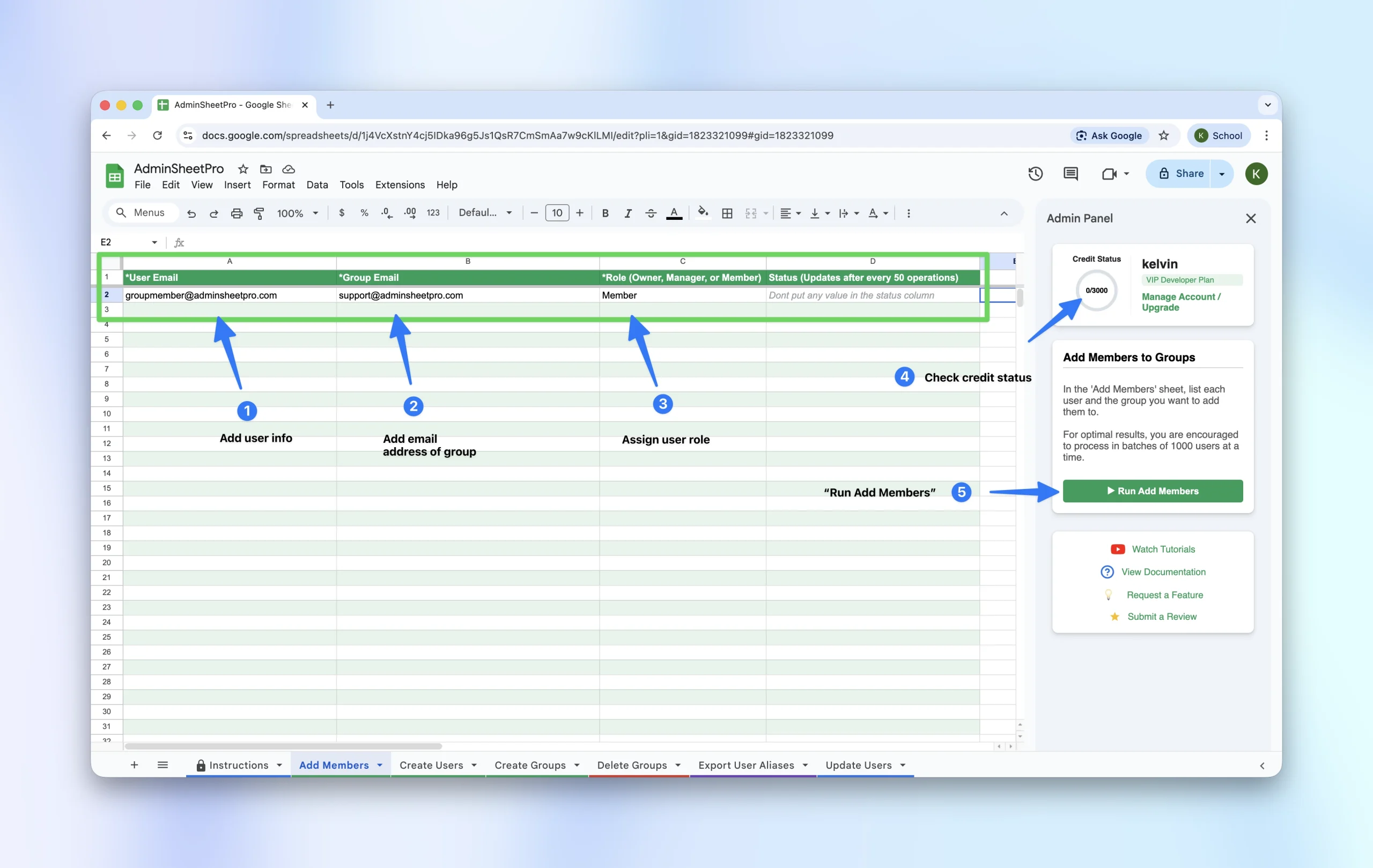
You can monitor the operation on the side panel. AdminSheet Pro will update the Status column after every 50 operations.
Back in the Google Workspace admin console, you will see these users added to the relevant group.
AdminSheet Pro will save you time and money on the most important Google Workspace bulk admin operations you routinely perform.
We will add more bulk features soon. If you have a recommendation, simply navigate to the side panel, click on the “Request a feature” button, and provide your suggestion.