
Welcome to AdminSheet Pro. AdminSheet Pro is a powerful tool that turns Google Sheets into a control centre for your entire organisation. Whether you are onboarding 500 new employees or auditing group memberships across thousands of accounts, this tool ensures you do it with the speed of a spreadsheet and the reliability of a professional IT suite.
AdminSheet Pro allows you to manage three main categories of bulk operations:
- Manage Users
- Manage Groups
- Manage Aliases
In this guide, we will cover the installation process, how to navigate the interface, and how our specialized “Processing Engine” keeps your account safe.
Step 1: Installation and Authorisation
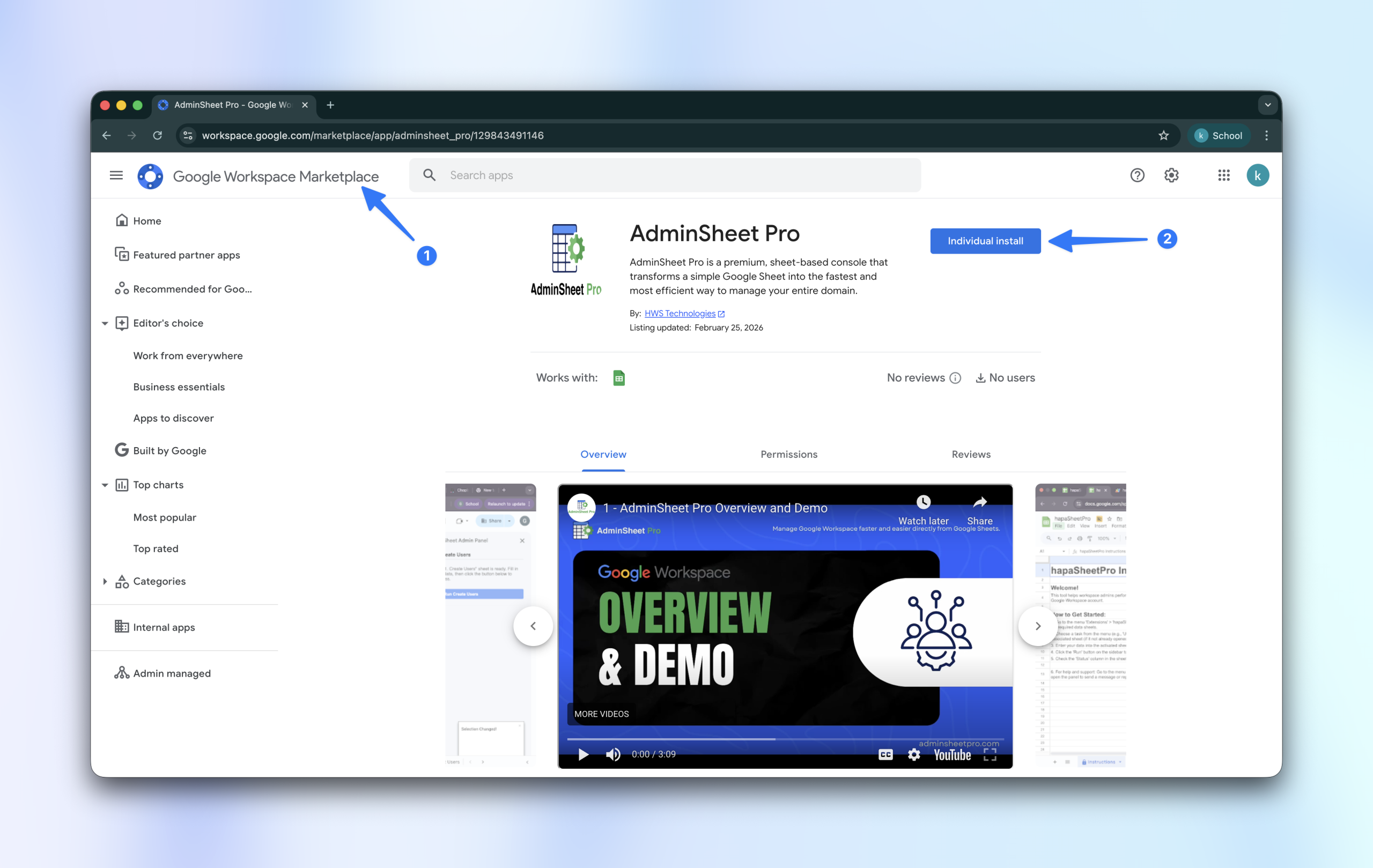
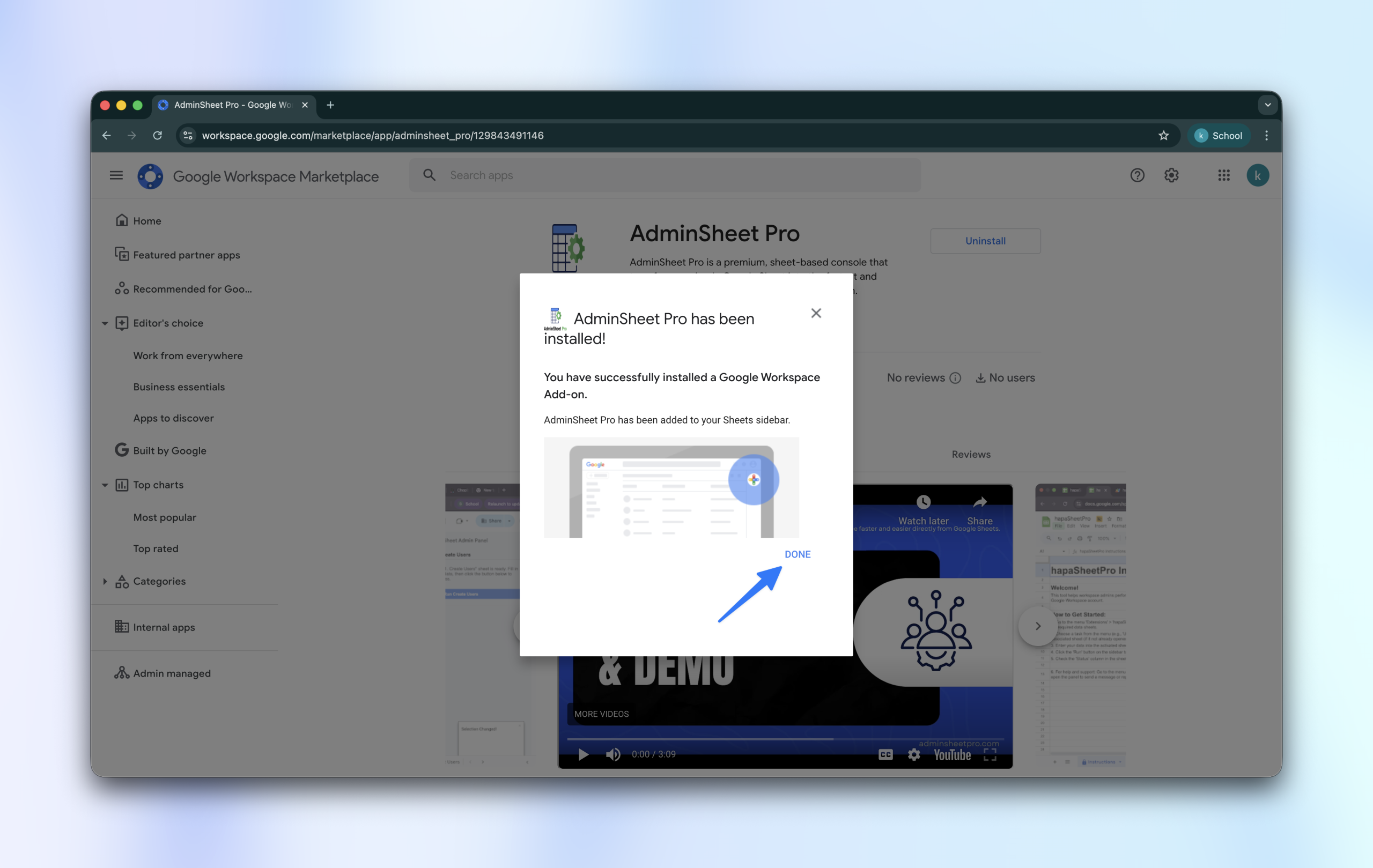
To begin, you must install AdminSheet Pro from the Google Workspace Marketplace. Note: You must be a Super Administrator or have appropriate administrative privileges for your domain to perform this installation.
- Navigate to the AdminSheet Pro listing on the Google Workspace Marketplace.
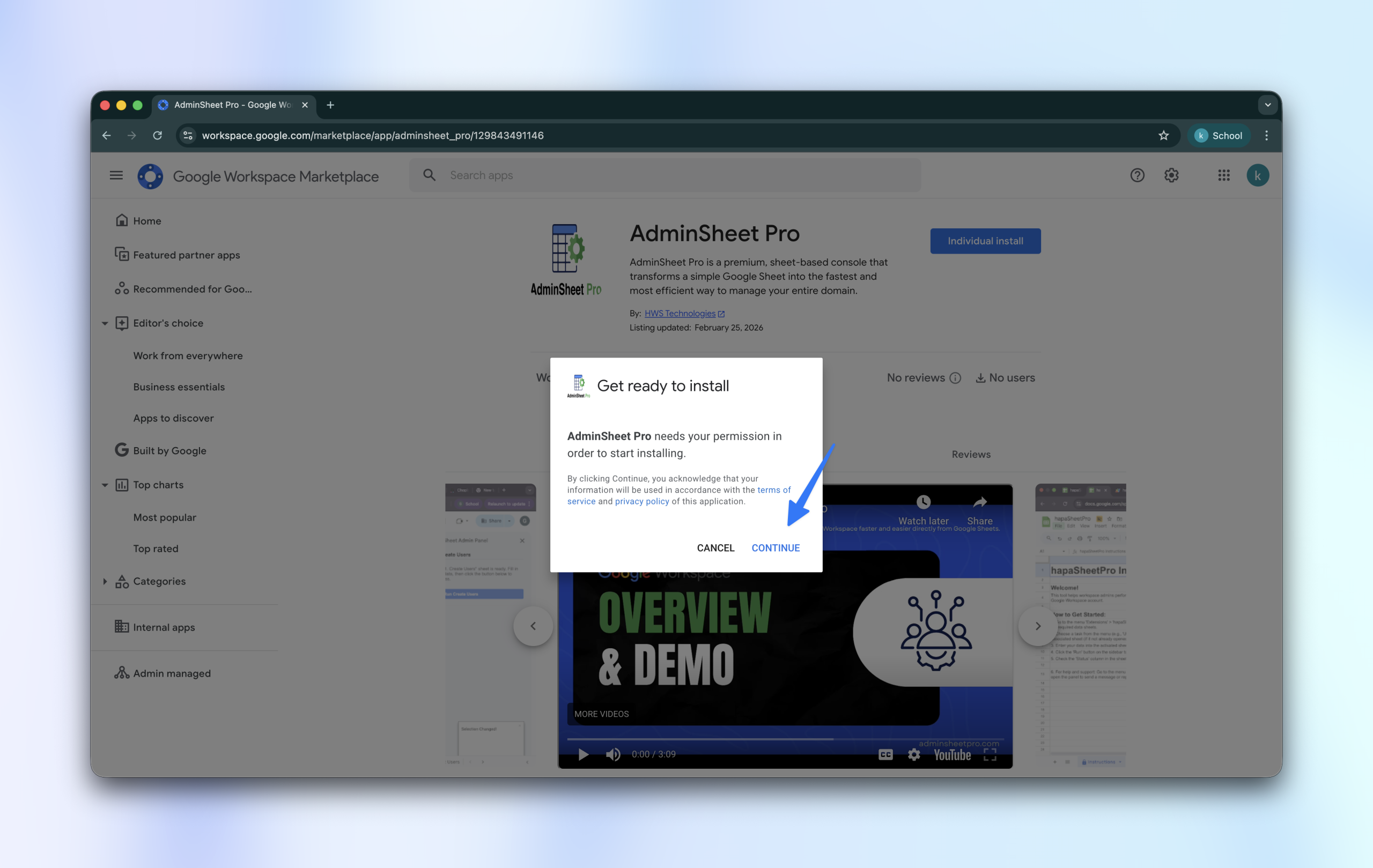
- Click the Install button, then click Continue in the confirmation pop-up.
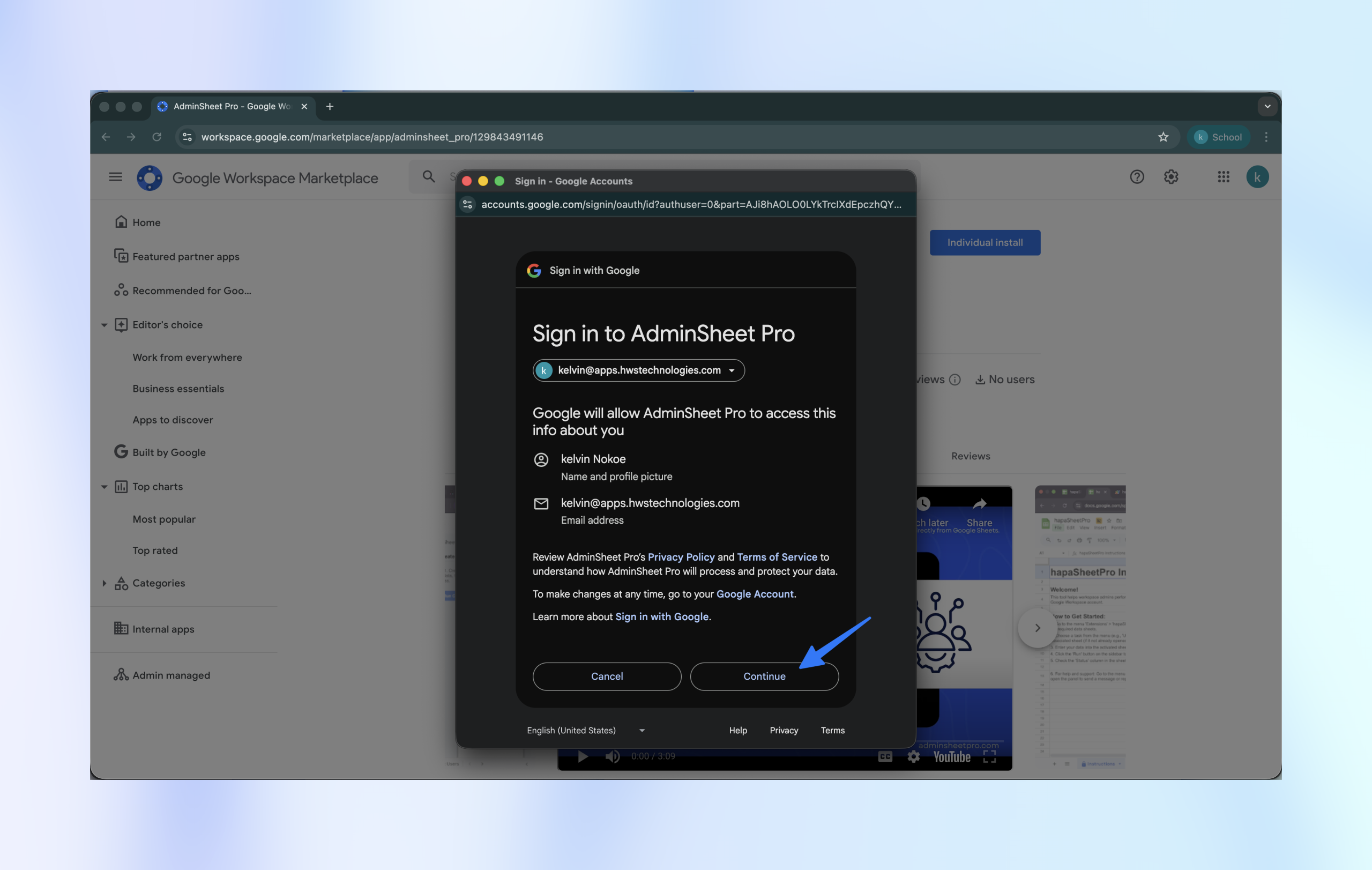
- Choose your Google Admin account to sign in.
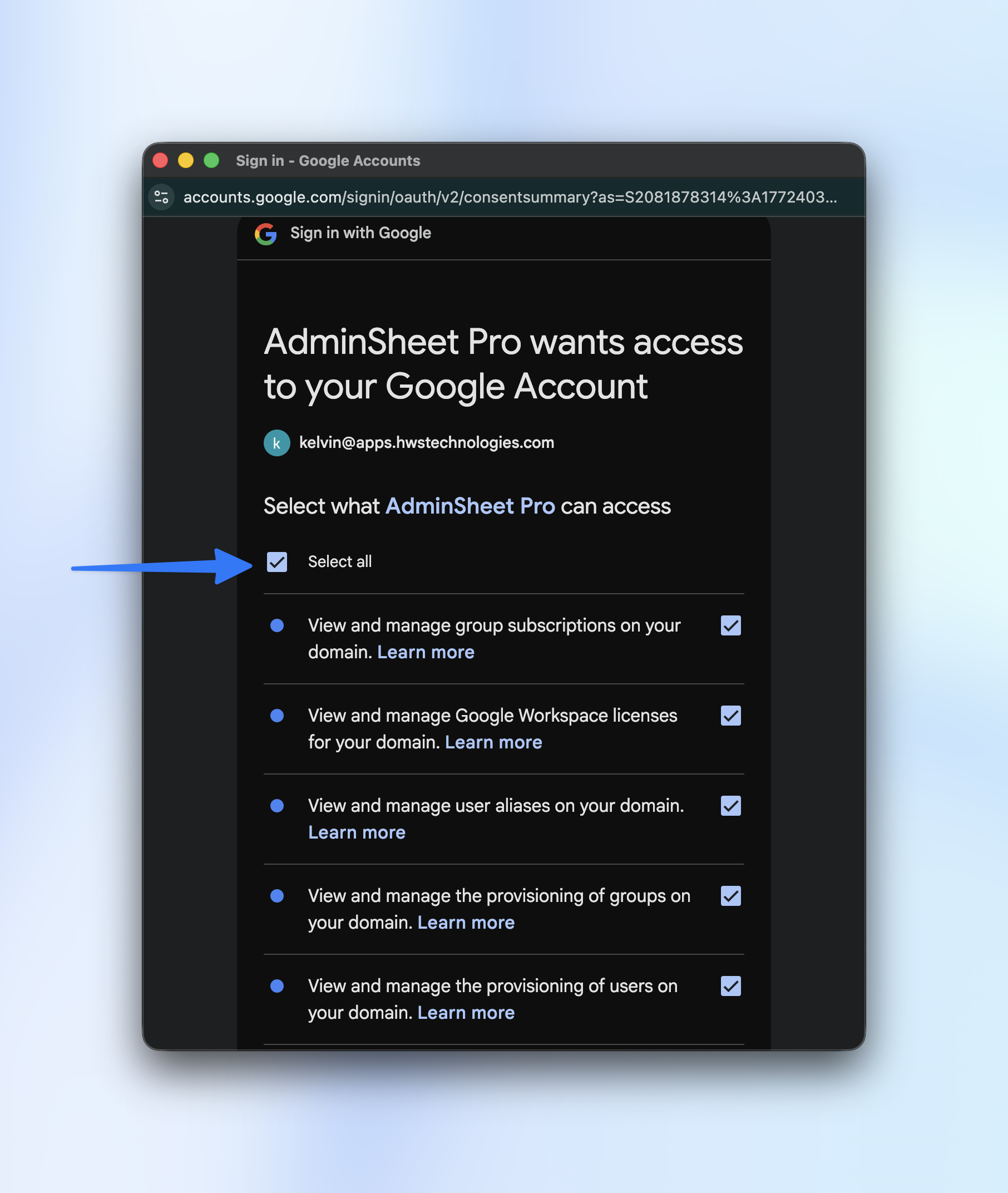
- On the permissions screen, click the “Select All” checkbox to ensure the tool has the necessary access to perform bulk operations.
- Scroll down and click Continue.
- Once the “AdminSheet Pro has been installed” message appears, click Done.
Step 2: How to Get Started
Once installed, AdminSheet Pro lives directly inside your Google Sheets environment.
- Open a new or existing Google Sheet.
- Navigate to the Extensions menu at the top of the page.
- Hover over AdminSheet Pro to see your management options.
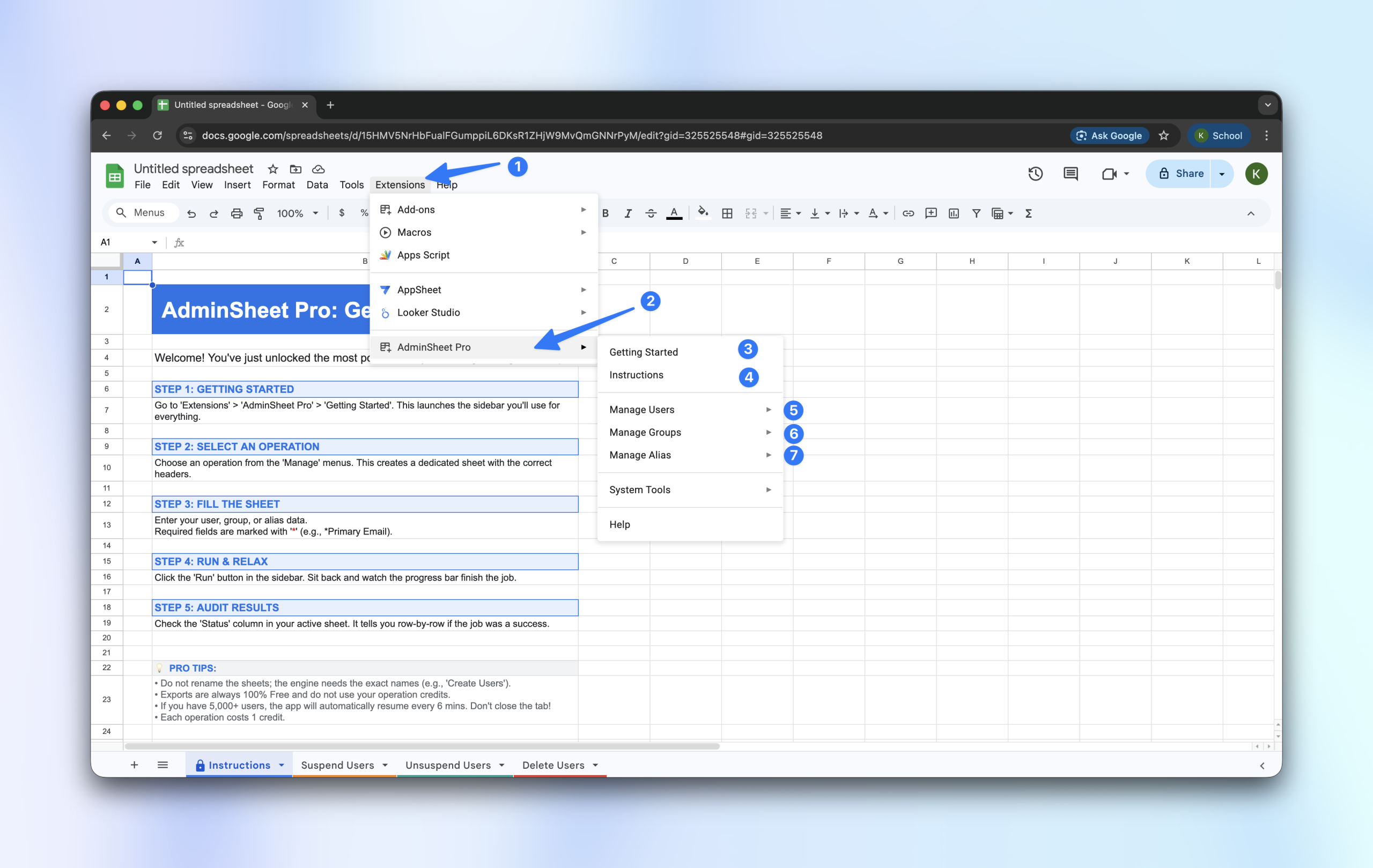
Exploring the Help Tools:
- Getting Started: This menu item opens a helpful module with a quick-start walkthrough.
- Instructions: Click this to open a detailed text guide within the sidebar. This guide contains essential tips and formatting rules for your data.
Step 3: Understanding the Interface
AdminSheet Pro is designed to be intuitive. It breaks down complex admin tasks into three categories:
- Manage Users: Create, Update, Suspend, Unsuspend, Delete, Export, and Restore users.
- Manage Groups: Create, Delete, and Export groups; manage group members.
- Manage Aliases: Create, Delete, and Export user aliases.
The Worksheet Logic: Each function (e.g., “Create Users”) is linked to a specific sheet tab. When you select a function, AdminSheet Pro automatically generates the required tab with the correct headers.
- Rule: Please do not rename these tabs after they are created.
- Headers: Required fields are marked with an asterisk (*). All other columns are optional.
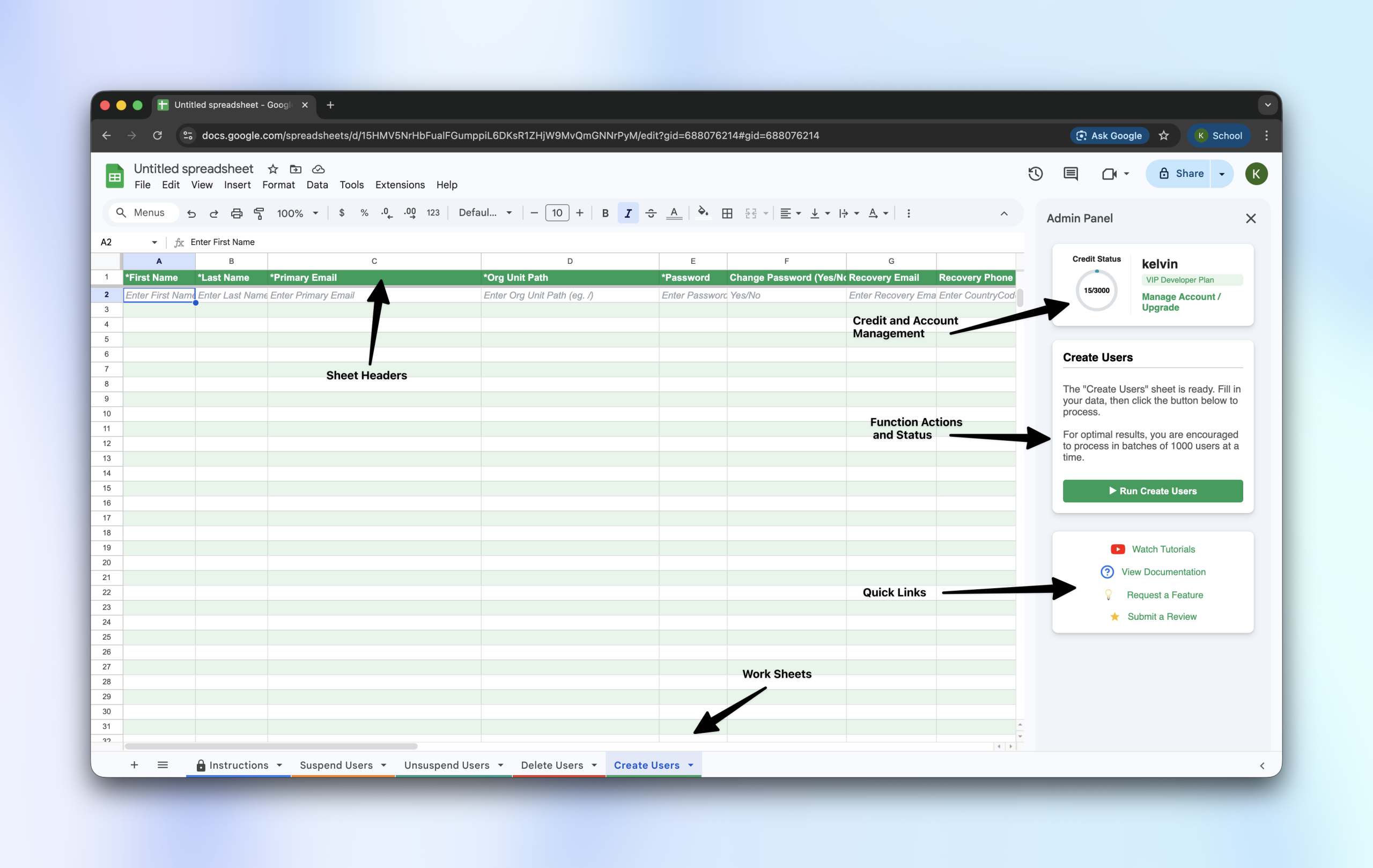
The Sidebar and Status Column:
- Sidebar: This panel handles the “Running” and “Progress Tracking” of your operation. You can start, stop, and monitor your tasks here.
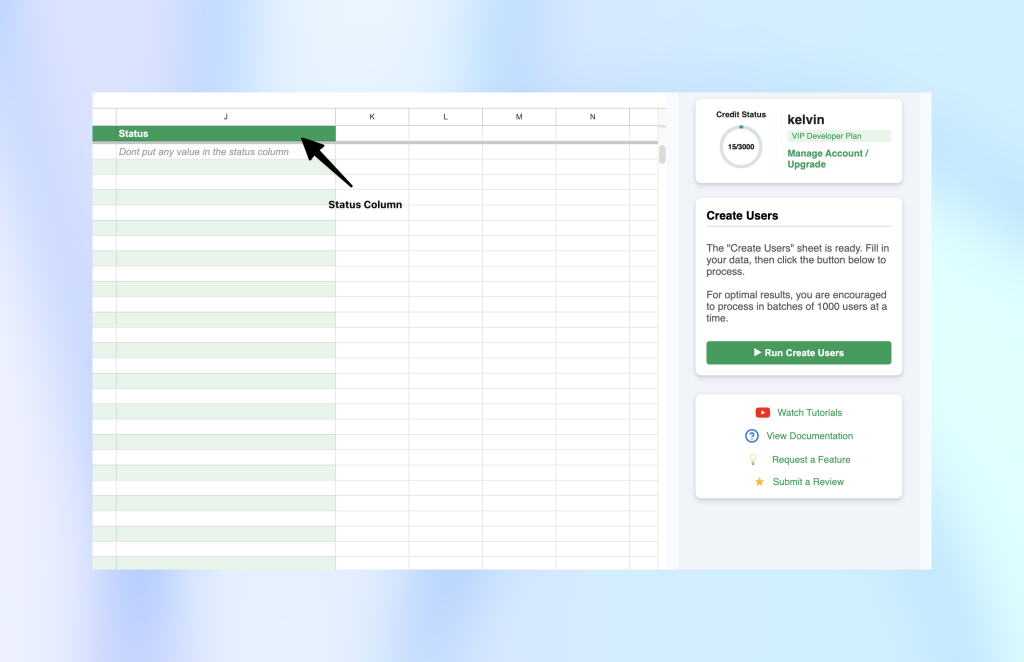
- Status Column: Every sheet includes a Status column. Do not write in this column. AdminSheet Pro uses this space to provide real-time feedback, writing
SUCCESSorERRORfor every row processed.
Step 4: The “Processing Engine” and Safety Quotas
Google enforces strict safety quotas on API operations. AdminSheet Pro includes a built-in “Processing Engine” to ensure your domain remains compliant and safe.
- Safety Pacing: We automatically pace operations to stay within Google’s account safety limits.
- The 6-Minute Rule: Google limits script executions to 6 minutes. If you are processing thousands of rows, AdminSheet Pro will automatically pause at 5.5 minutes and restart after 10 seconds.
- Important: Do not close your browser tab while an operation is running. The tool will handle the rest.
Step 5: Credits and Account Management
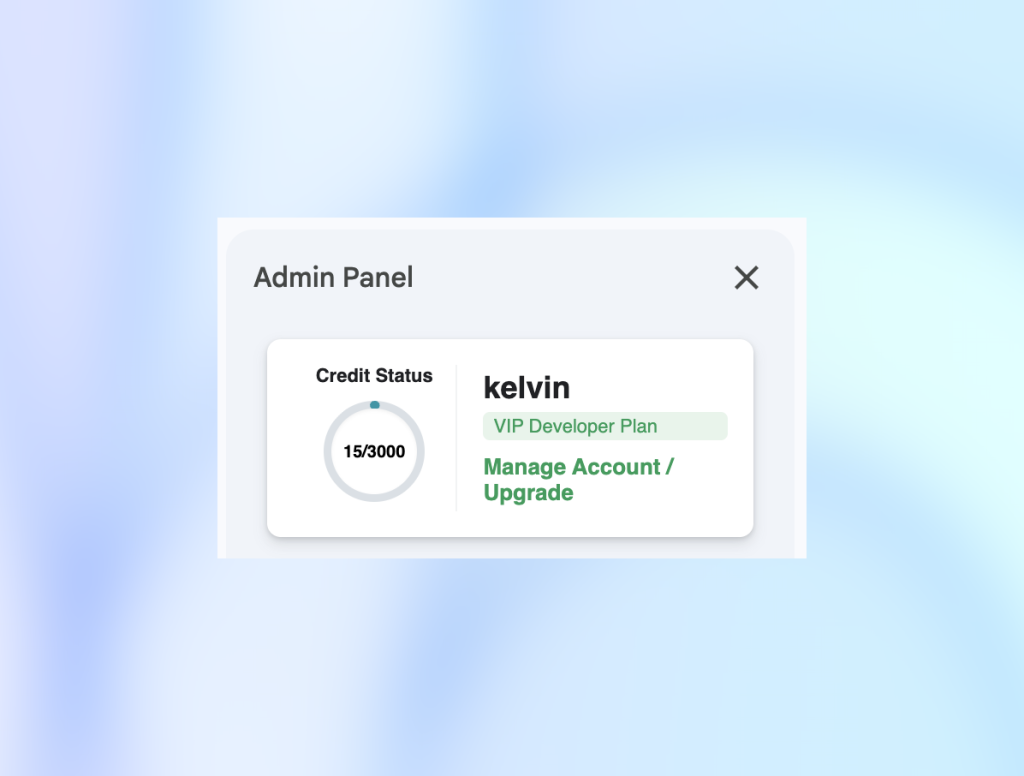
At the top of the sidebar, you can view your available credits.
- Initial Credits: Every installation comes with 100 complimentary credits.
- Always Free: All Export functions are 100% free, unlimited, and do not consume any credits.
- Upgrading: You can increase your capacity at any time by clicking the “Manage Account and Upgrade” link in the sidebar.
Feature Requests
We are constantly adding new bulk features. If you have a specific need, navigate to the sidebar, click the “Request a feature” button, and let us know!
Visit adminsheetpro.com to activate your “always free” plan today.