
Welcome to AdminSheet Pro. In this guide, you will learn how to quickly bulk-unsuspend (reactivate) users in Google Workspace using the AdminSheet Pro Google Sheets add-on.
Step 1: Open the Unsuspend Users Tool
- Open Google Sheets.
- Click on the Extensions menu and select AdminSheet Pro.
- Navigate to Manage Users and click on “Unsuspend Users”.
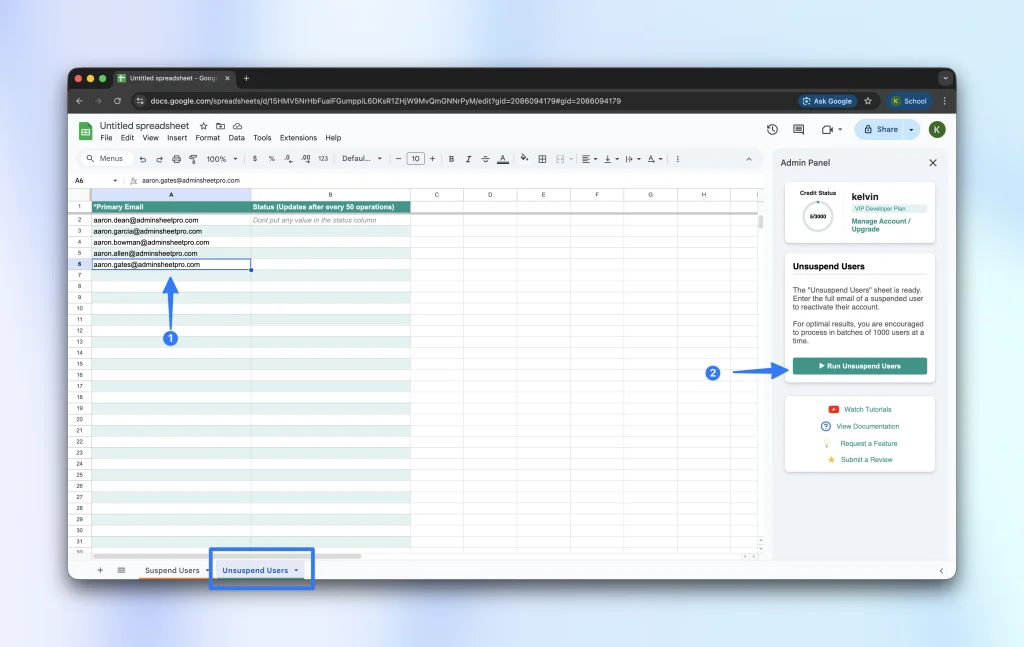
AdminSheet Pro will automatically create the necessary sheet for you if you haven’t used this feature before.
Step 2: Prepare the User List
For the Unsuspend operation, the only required column is the “Primary Email” column (denoted by an asterisk).
Paste the email addresses of the suspended users you want to reactivate directly into this column.
Step 3: Run the Unsuspension Process
- Ensure the AdminSheet Pro sidebar is open.
- Click on the “Run Unsuspend Users” button to begin the reactivation process.
Watch the second section of the sidebar to track the progress.
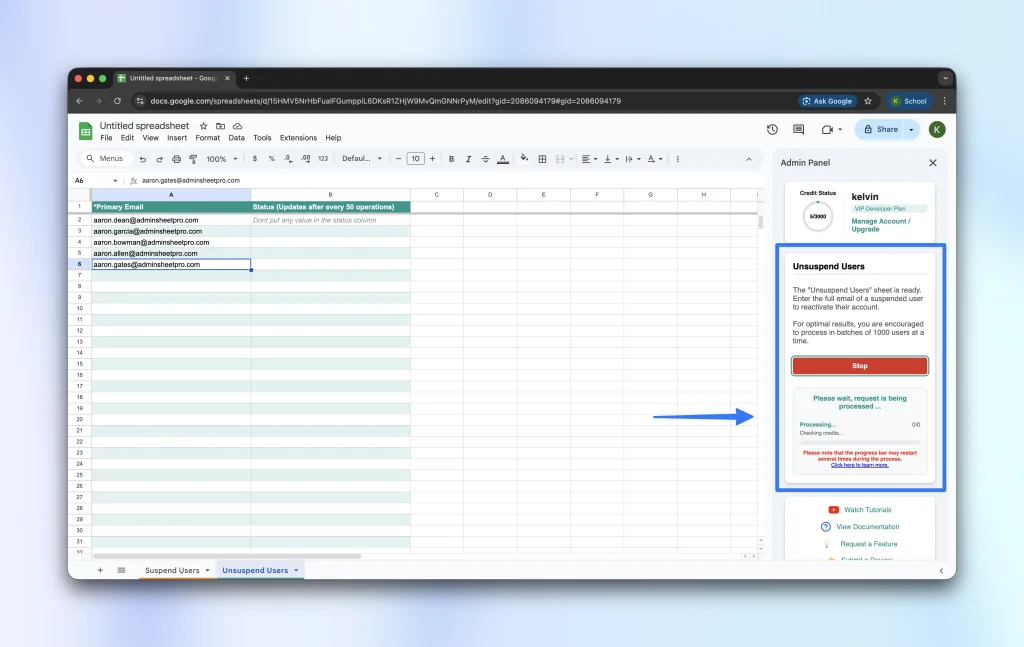
Important Note on Pacing: If your list contains thousands of rows, AdminSheet Pro is designed to automatically pause at 5.5 minutes and restart after 10 seconds. This protects your account by staying within Google’s 6-minute quota limit. Please do not close your browser. The system will manage the pacing automatically.
Step 4: Review the Results
As it processes your list, AdminSheet Pro will update the Status column on your sheet, logging a SUCCESS or ERROR message for each email address.
Upon completion, you will see a summary of successful, failed, and skipped rows in the sidebar.
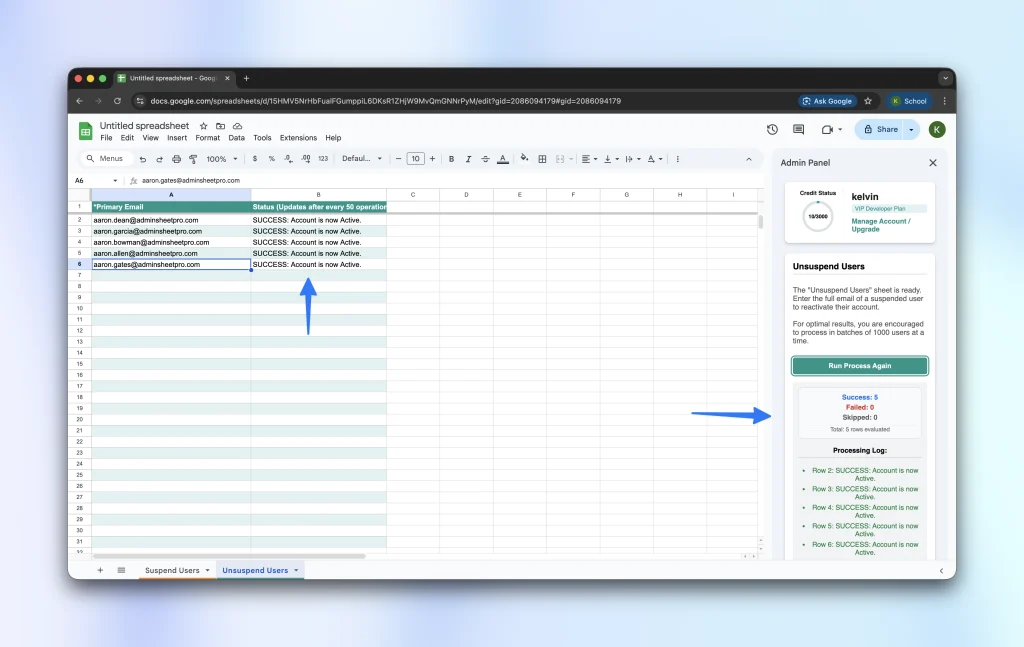
Finally, head over to your Google Workspace Admin Console and reload the user directory. You will find that the selected users are now unsuspended and active again.

You can do much more with AdminSheet Pro. For more information, please visit adminsheetpro.com.