
Removing users from multiple groups manually in the Admin Console is a tedious task. AdminSheet Pro allows you to handle these removals in bulk using a simple spreadsheet interface.
Step 1: Open the Remove Members Tool
- Open your Google Sheet.
- Navigate to Extensions > AdminSheet Pro > Manage Groups.
- Click on Remove Members.
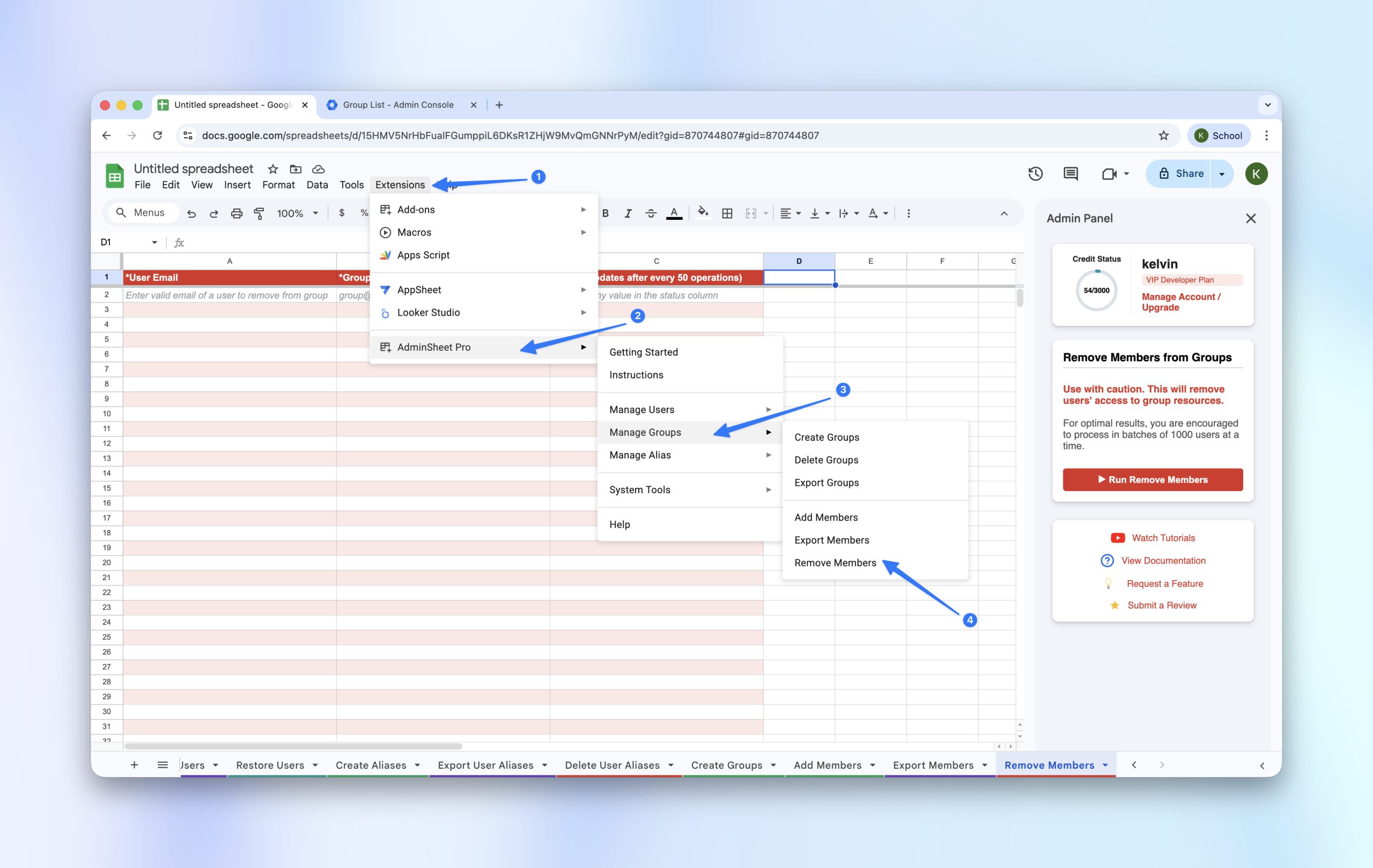
AdminSheet Pro will automatically create the required sheet tab if it is not already present in your workbook.
Step 2: Populate the Removal List
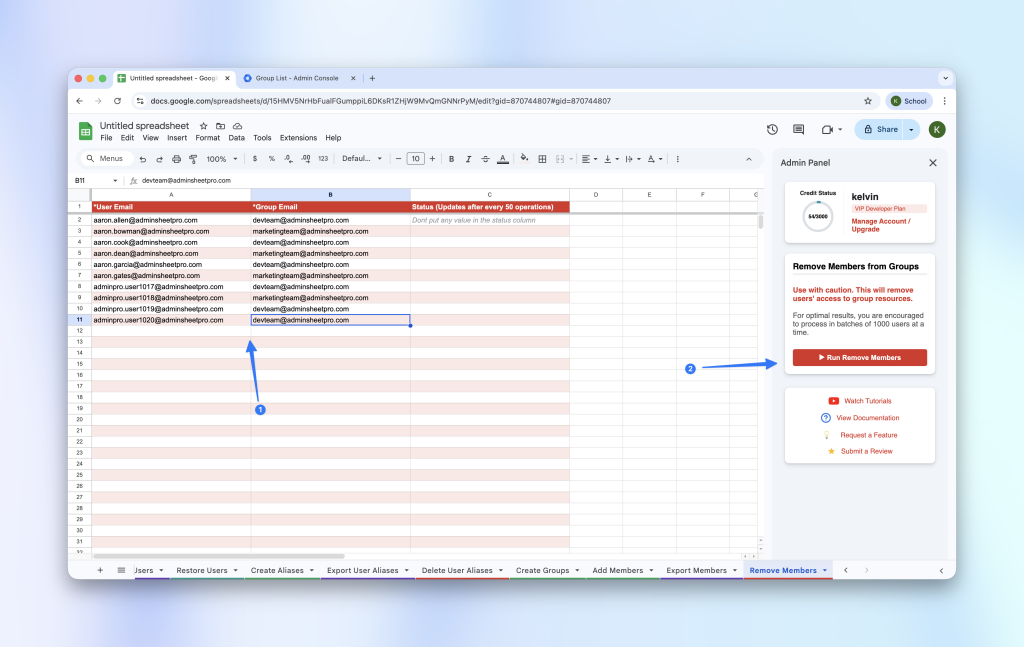
To remove members, you need to specify both the user and the group they belong to.
- User Email (*): Input the email address of the user you want to remove.
- Group Email (*): Input the email address of the group they should be removed from.
Step 3: Run the Operation
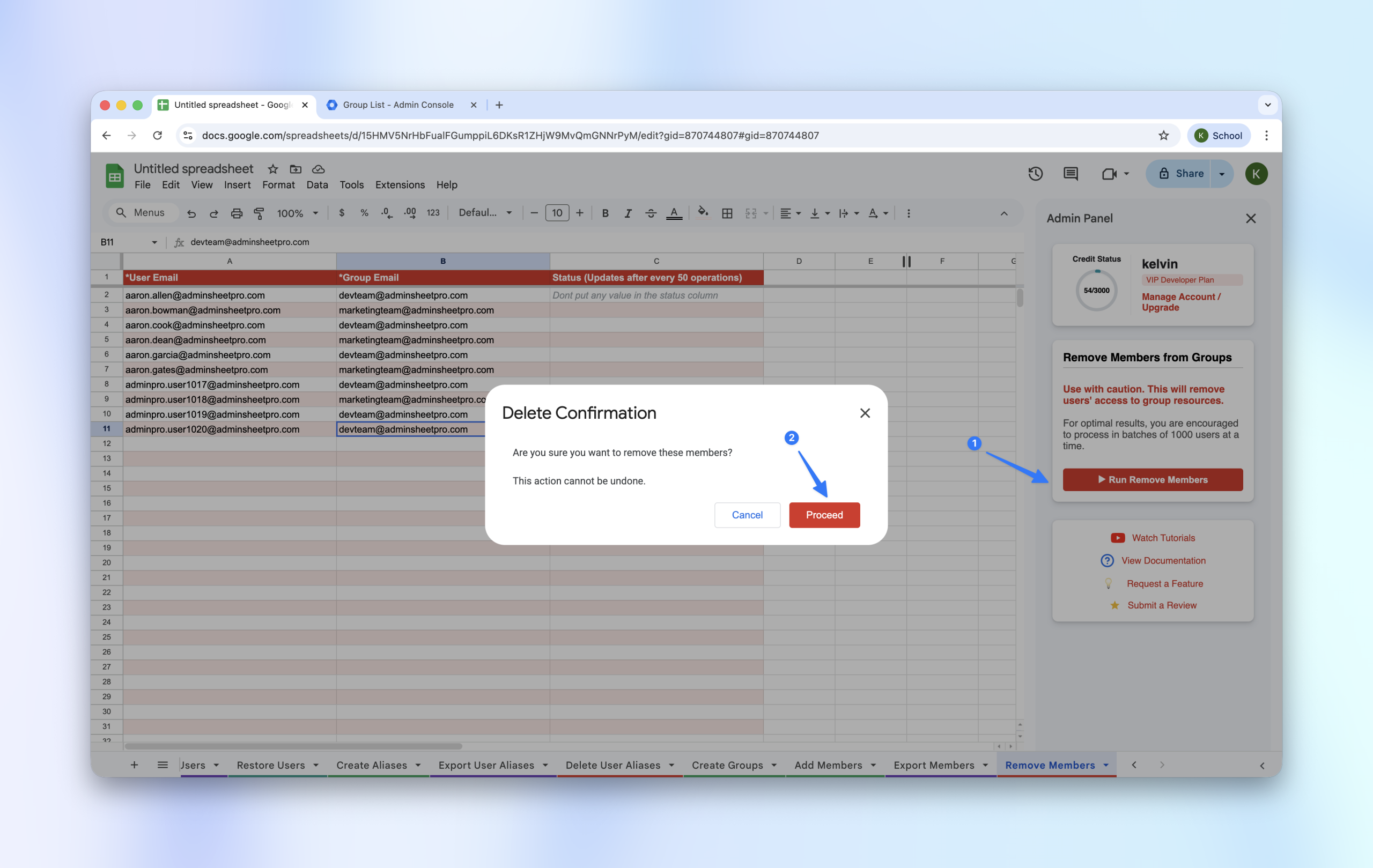
- Open the AdminSheet Pro sidebar.
- Click the “Run Remove Members” button.
Step 4: Verify the Results
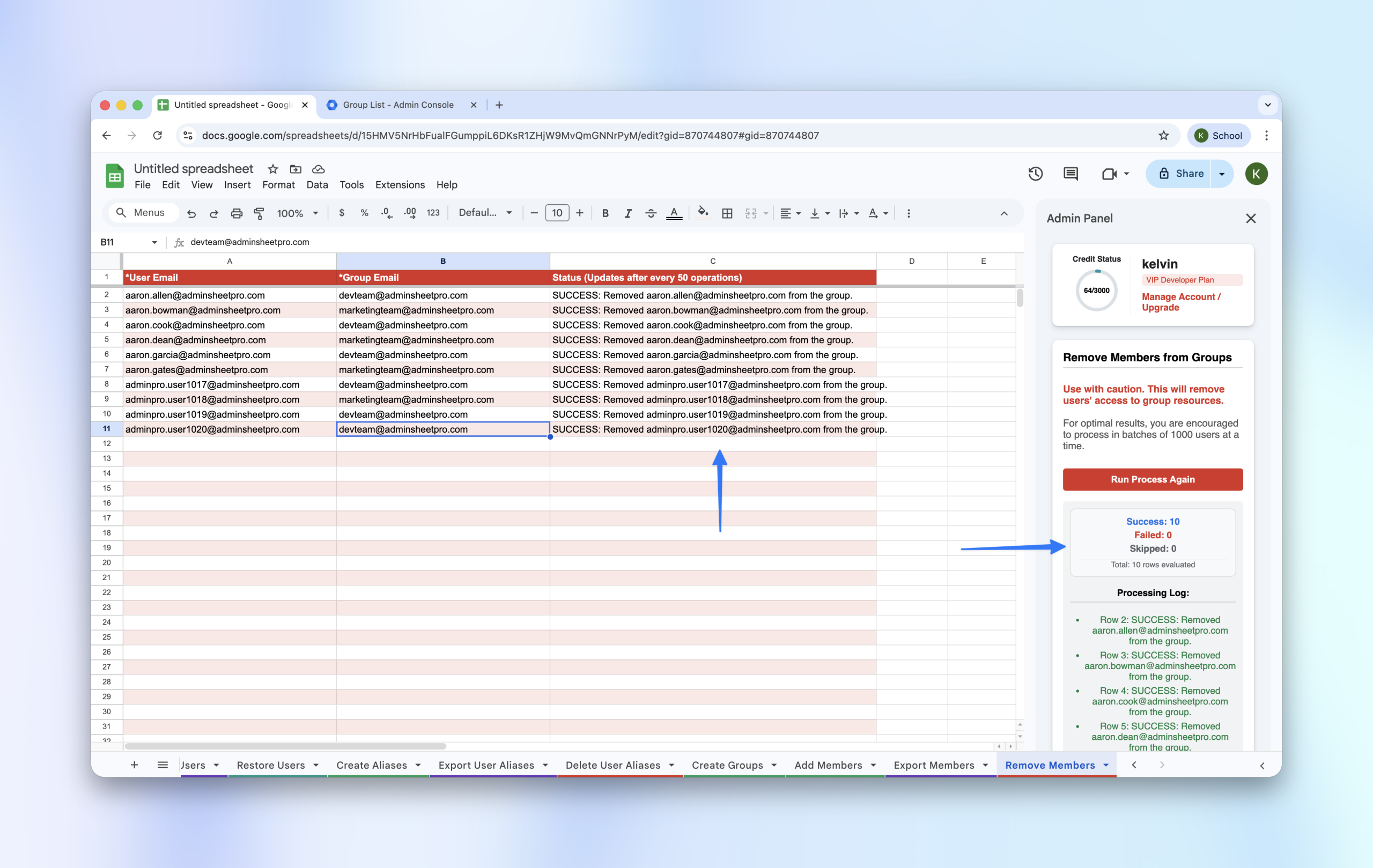
The tool will process the rows and update the Status column with a SUCCESS or ERROR message.
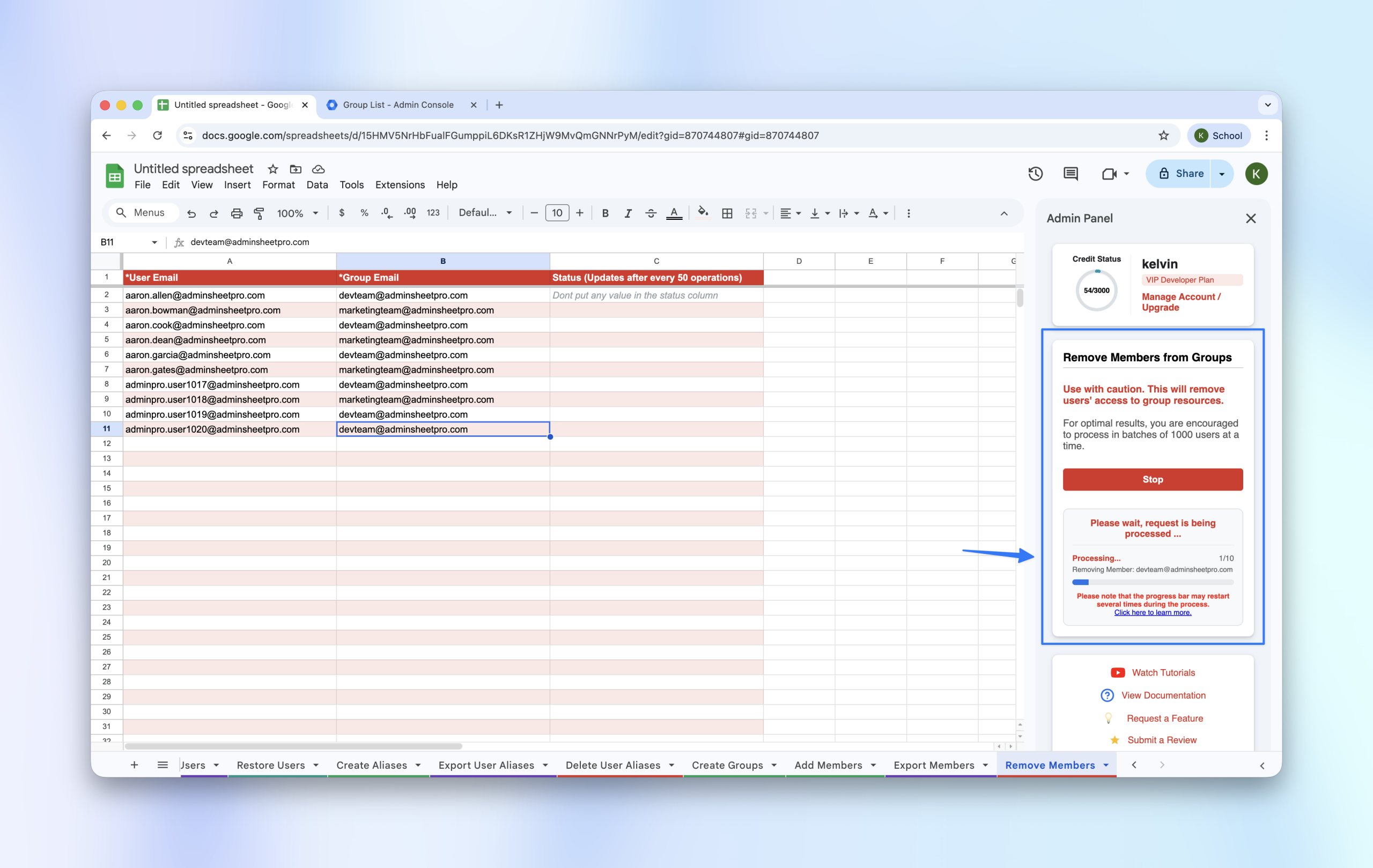
You can verify the changes by checking the Group memberships in your Google Workspace Admin Console; the specified users will no longer be listed as members.
Visit adminsheetpro.com to manage your Google Groups with ease.