
Welcome to AdminSheet Pro. In this guide, you will learn how to permanently bulk-delete users in Google Workspace using the AdminSheet Pro Google Sheets add-on.
Warning: Deleting users is a permanent action. Ensure you have backed up any necessary data before proceeding.
Step 1: Open the Delete Users Tool
- Open Google Sheets.
- Click on the Extensions menu and select AdminSheet Pro.
- Navigate to Manage Users and click on “Delete Users”.
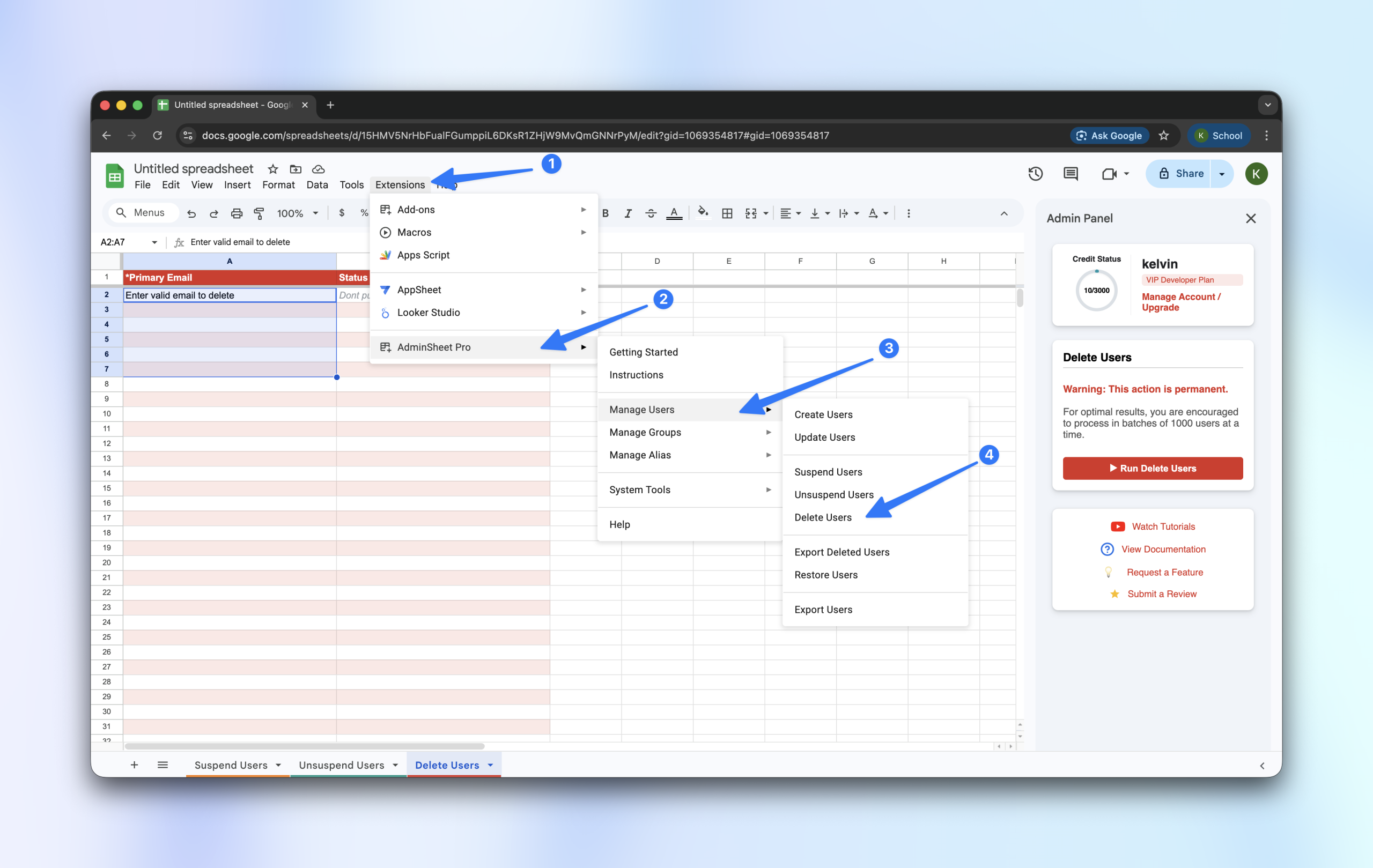
AdminSheet Pro will automatically create the required sheet format as a new tab at the bottom of your workspace.
Step 2: Prepare the User List
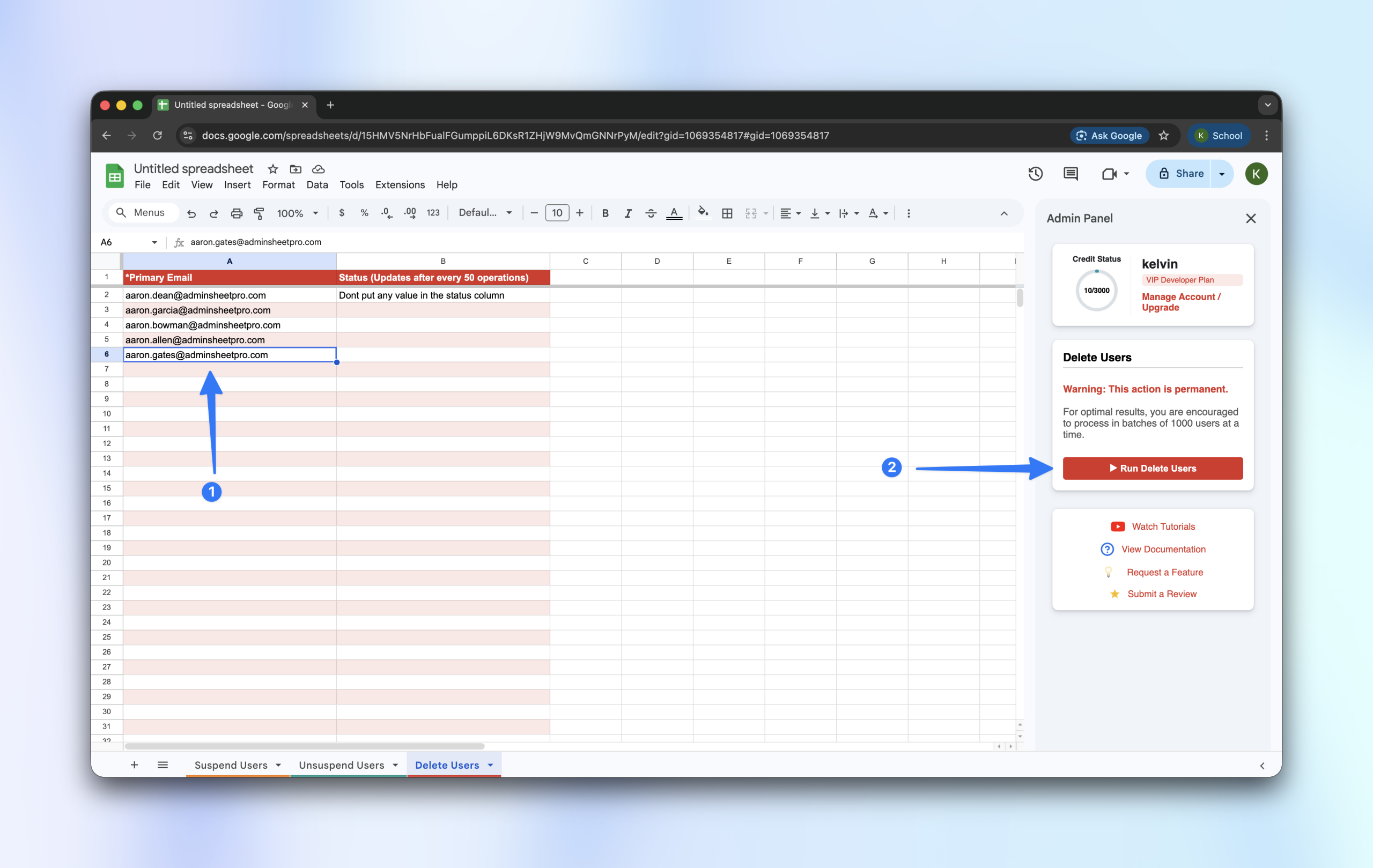
To execute a deletion, you only need one piece of data per user. The only required column is the “Primary Email” column (marked with an asterisk).
Paste the email addresses of the users you wish to delete into this column. Double-check this list carefully to ensure accuracy.
Step 3: Run the Deletion Process
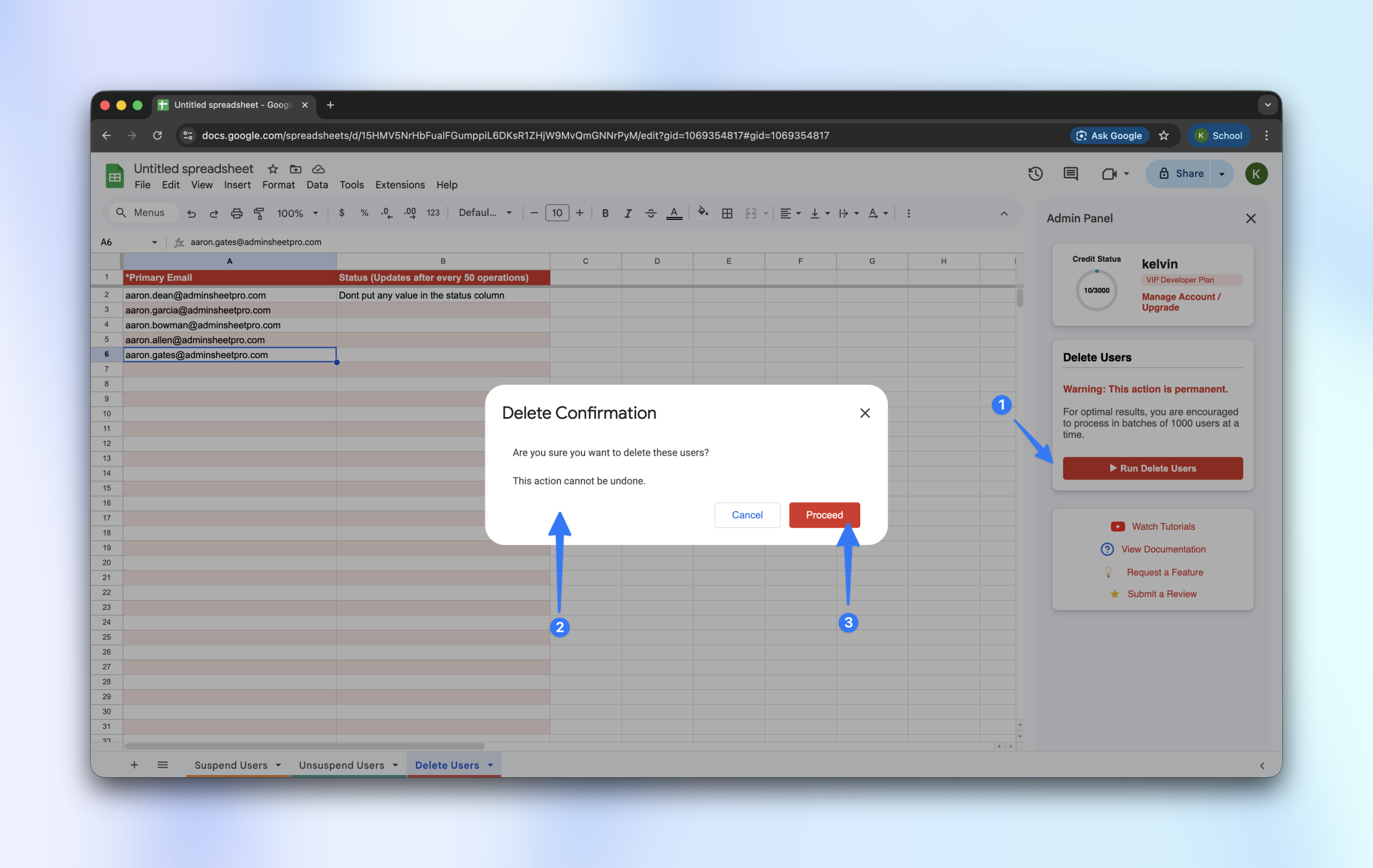
- Open the AdminSheet Pro sidebar.
- Click on the “Run Delete User” button to initiate the bulk removal.
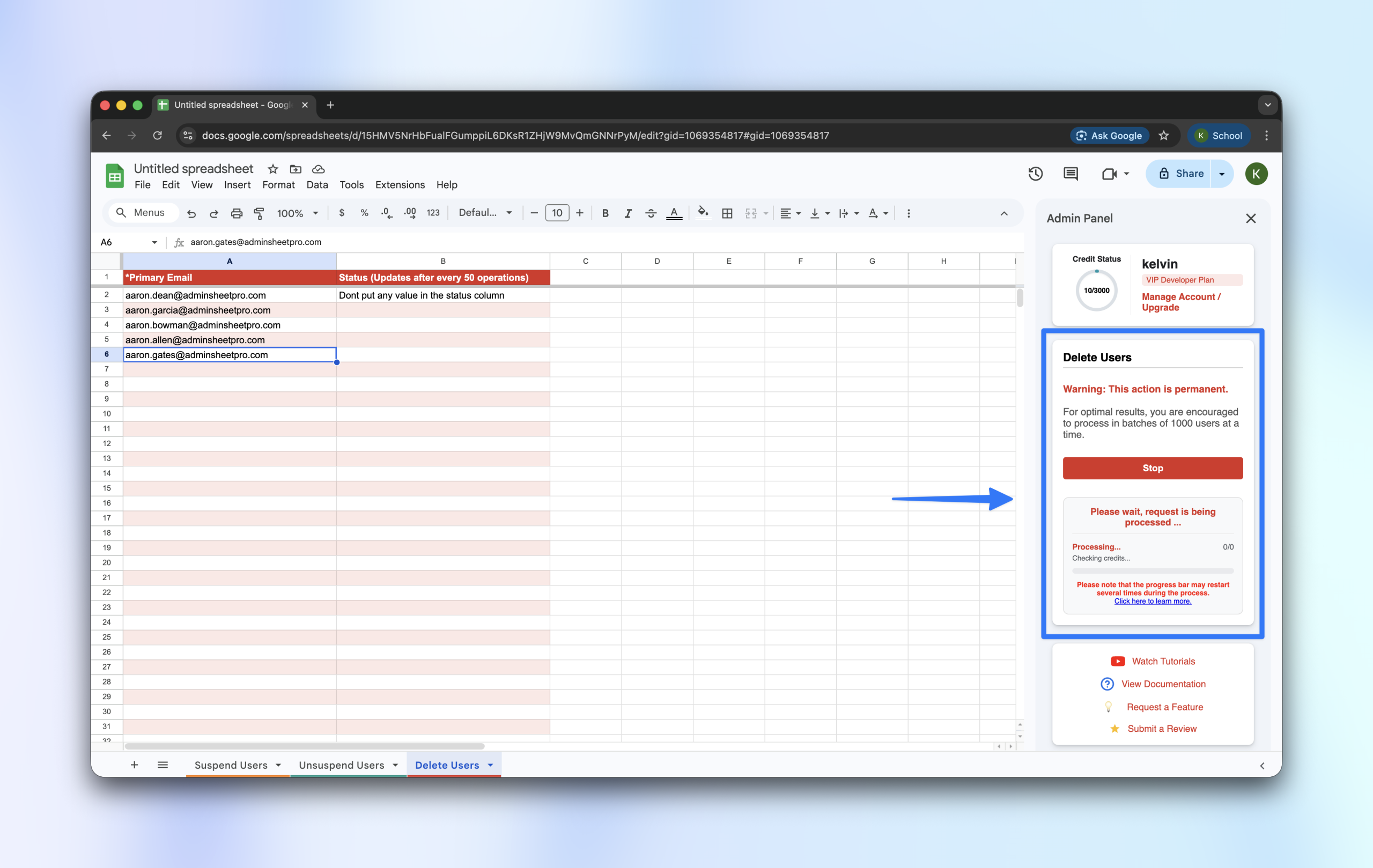
You can track the progress of the deletion in the sidebar.
Important Note on Pacing: If you are deleting a massive number of users, AdminSheet Pro will automatically pause processing at the 5.5-minute mark and restart after a 10-second delay. This automatic pacing is a safety feature to ensure the operation stays within Google’s API limits. Please do not close your browser; the tool will resume and finish the job automatically.
Step 4: Review the Results
AdminSheet Pro will periodically update your spreadsheet as it works. It will log a SUCCESS or ERROR message in the Status column for every single row you requested to process.
Once complete, the sidebar will show you the exact number of rows that were successful, failed, or skipped.
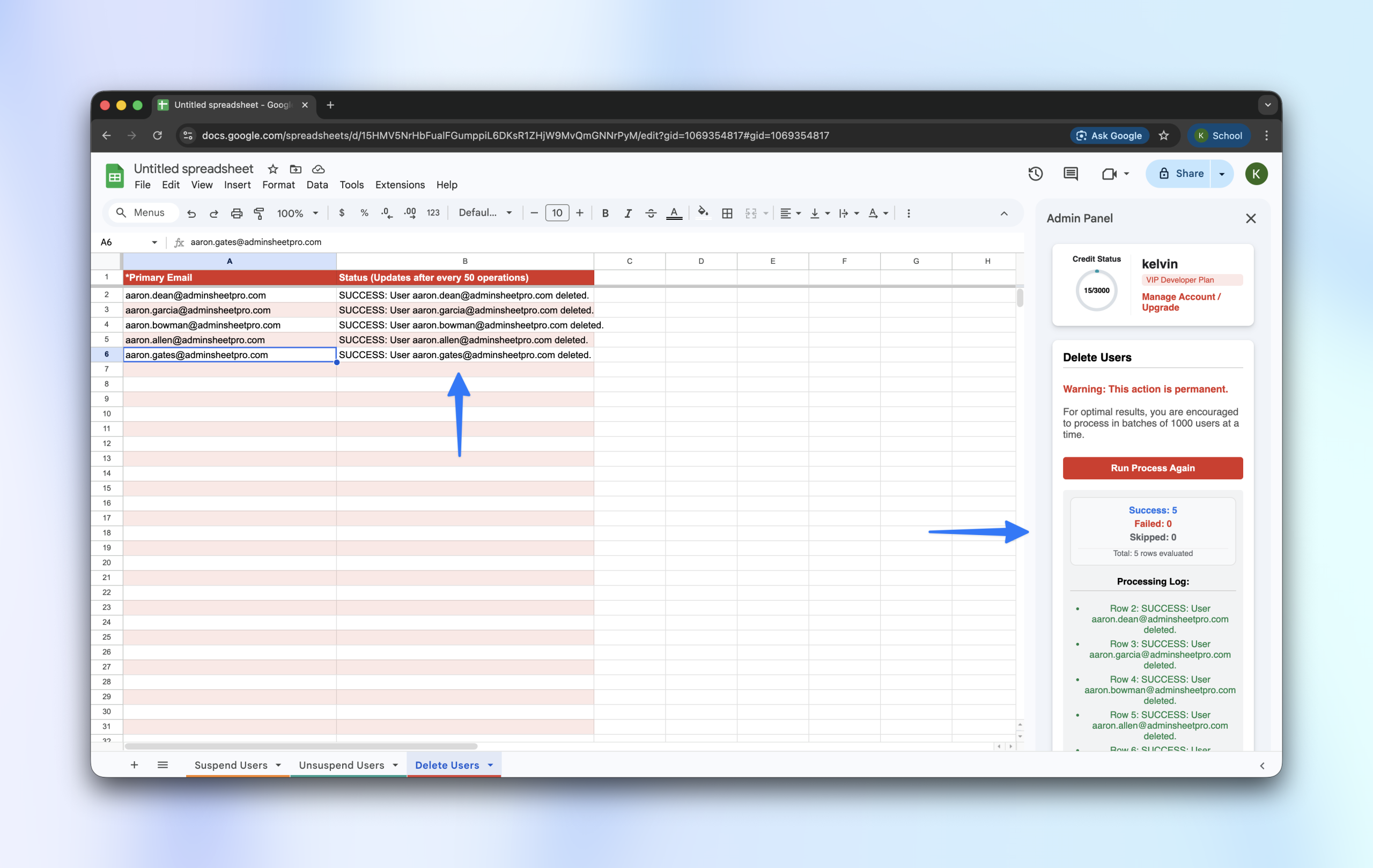
You can verify the operation by visiting your Google Workspace Admin Console and doing a quick reload. The targeted users will no longer be present in your directory.
You can do much more with AdminSheet Pro. For more information, please visit adminsheetpro.com.