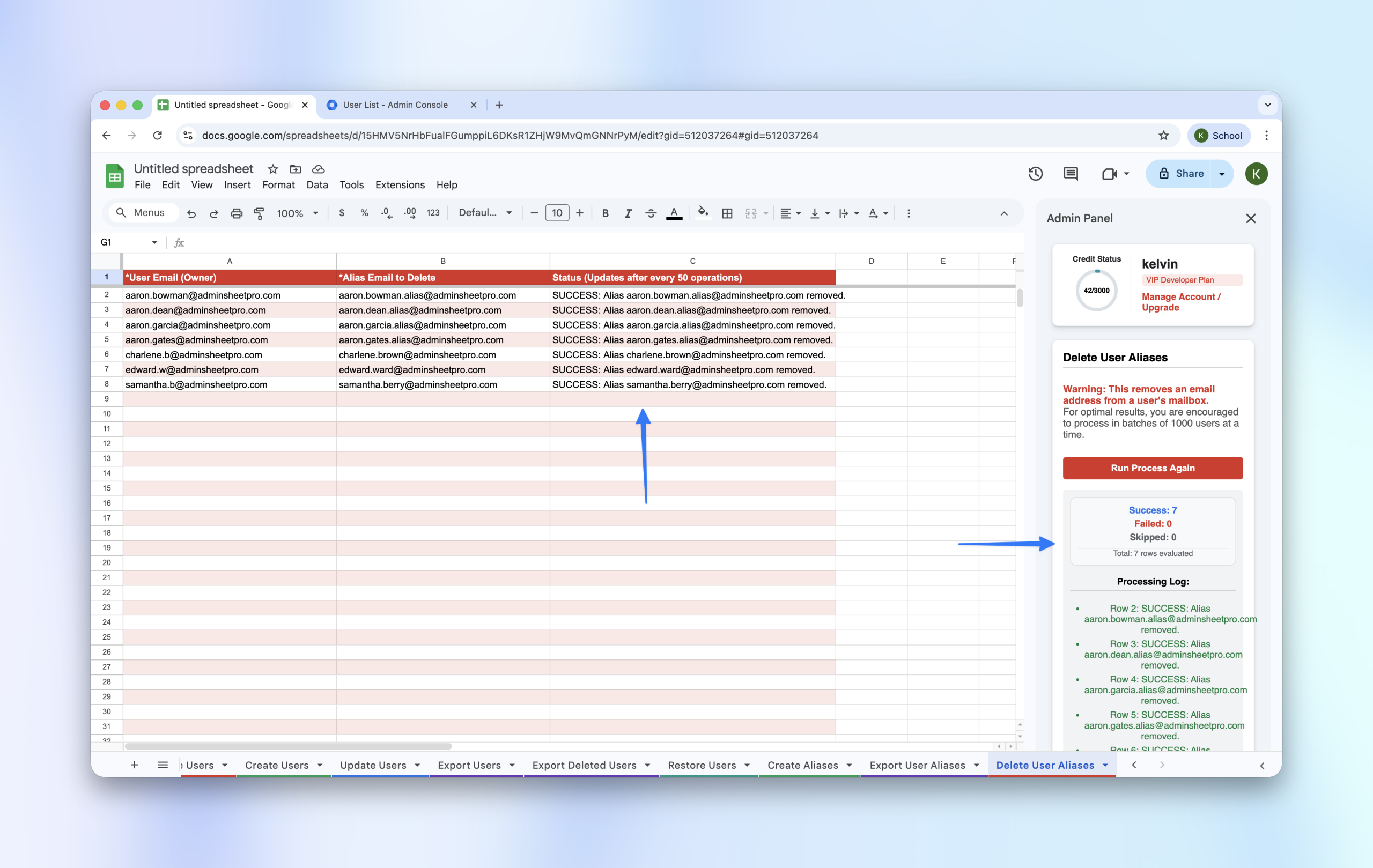
Removing email aliases one by one in the Admin Console is time-consuming. With AdminSheet Pro, you can delete multiple aliases across different users simultaneously.
Step 1: Open the Delete Aliases Tool
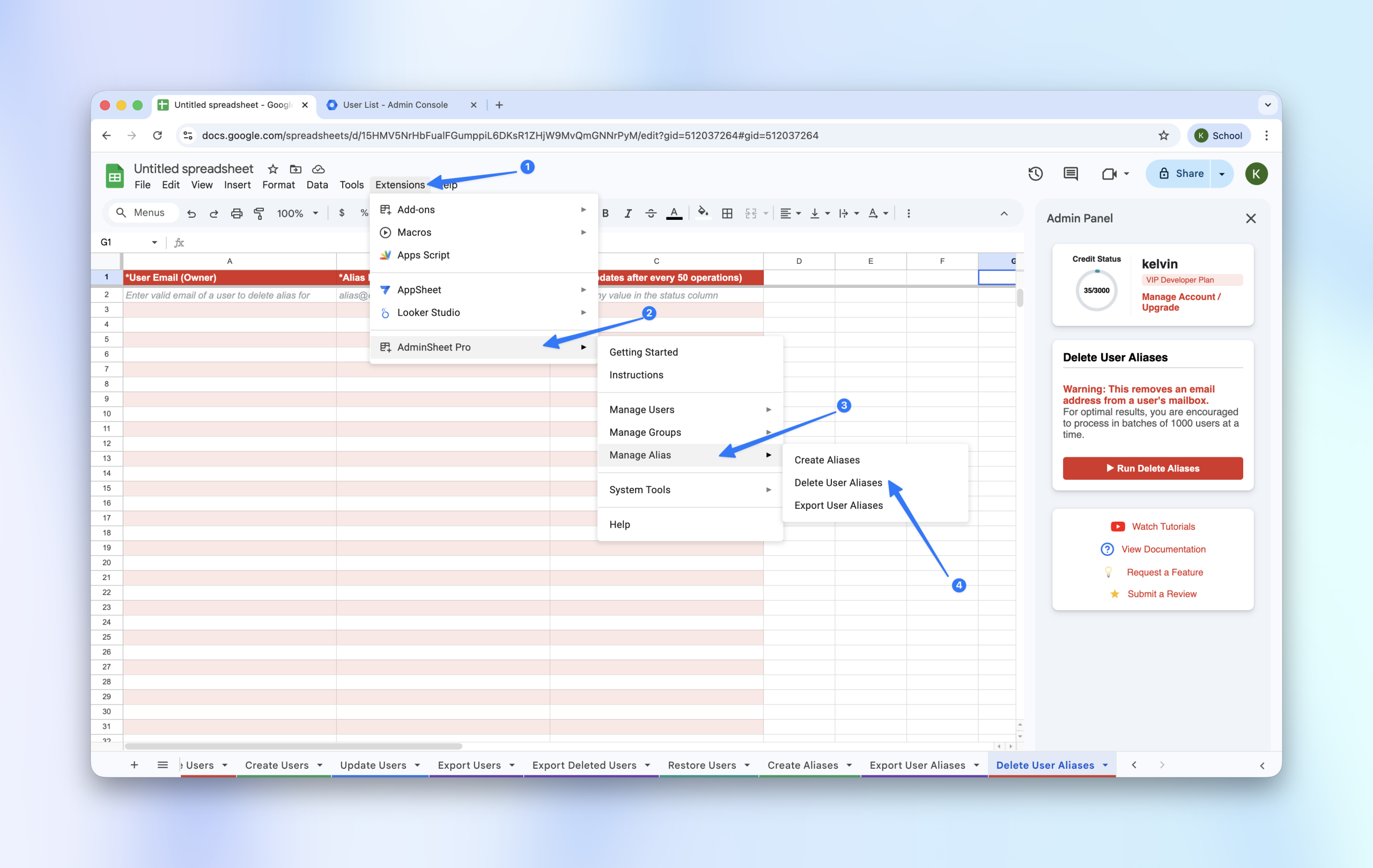
- Navigate to Extensions > AdminSheet Pro > Manage Aliases.
- Click on Delete User Aliases.
Step 2: Prepare the Deletion List
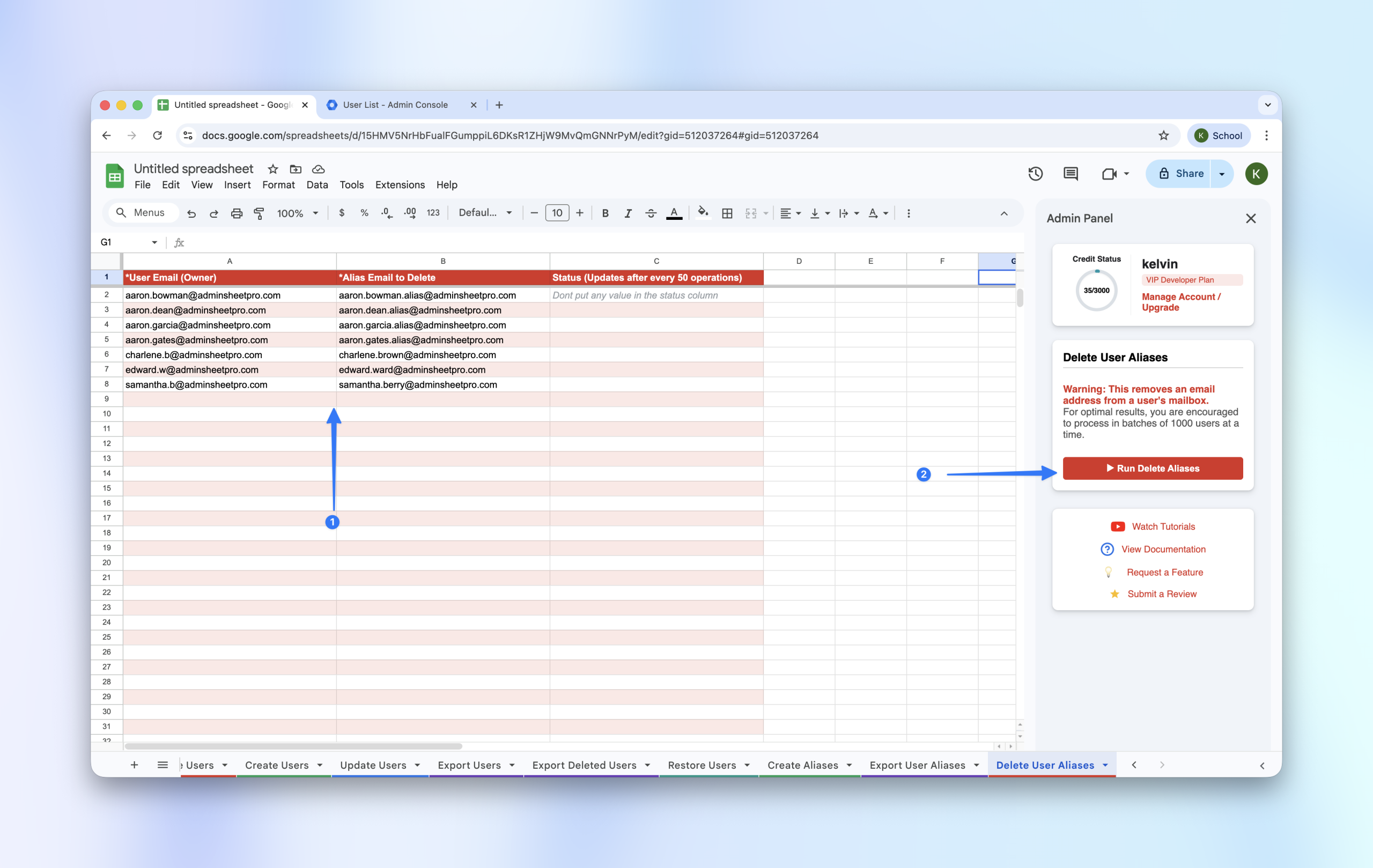
To delete aliases, you must specify both the owner and the alias itself to ensure the correct record is removed.
- User Email (*): The primary email address of the account holder.
- Alias Email to Delete (*): The specific alias address you want to remove.
Step 3: Run the Deletion
- Open the sidebar and click the “Run Delete Aliases” button.
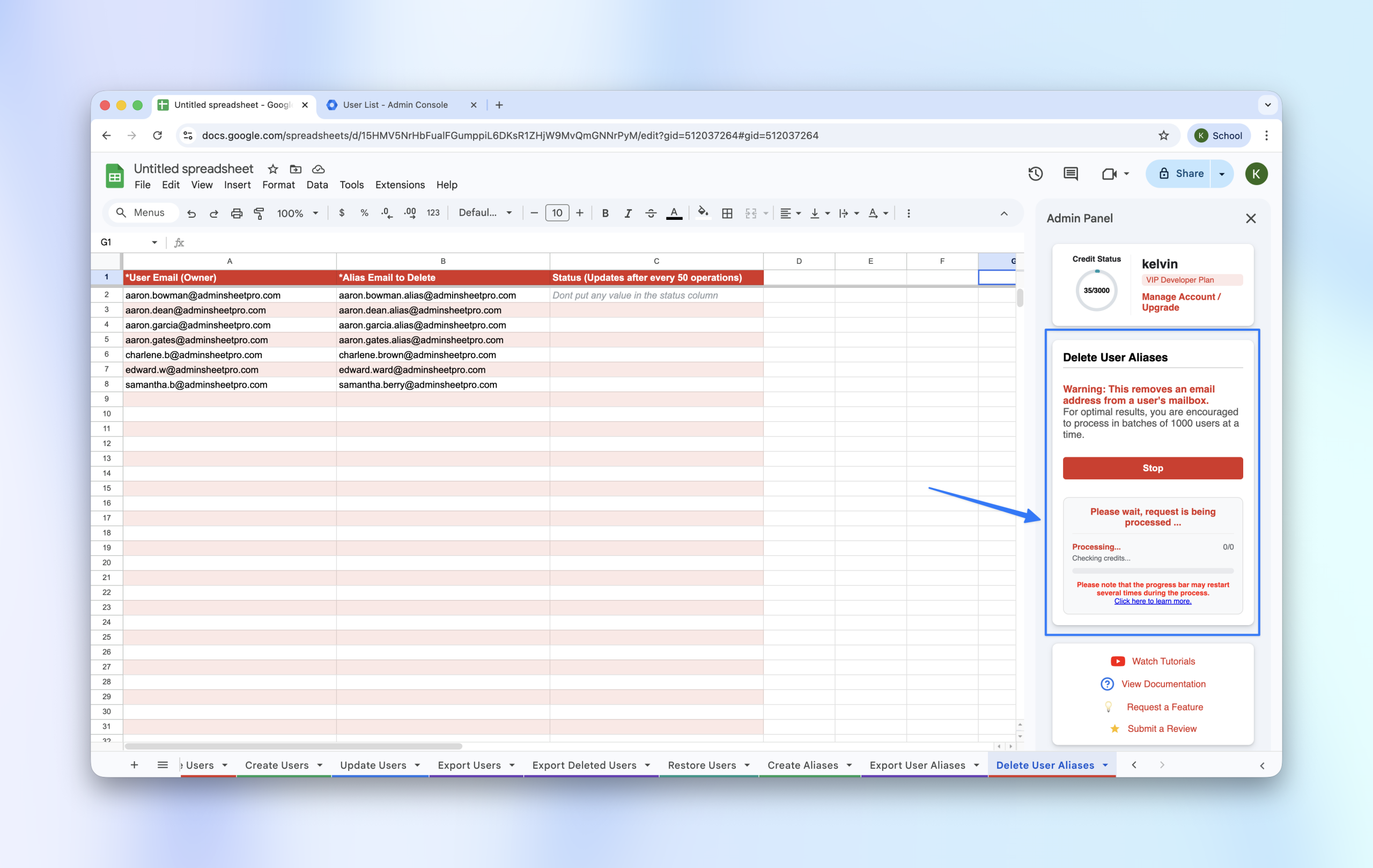
- Monitor the progress in the sidebar as the tool processes each row.
Step 4: Confirm Success
Check the Status column for SUCCESS messages. You can verify the removal by checking the user’s profile in the Google Workspace Admin Console; the specified aliases will now be gone.