
Maintaining a clear overview of your organization’s communication structure is a vital task for any Google Workspace™ administrator. Whether you are conducting a security audit, preparing for a domain migration, or simply cleaning up outdated distribution lists, having a local, filterable record of your groups is essential.
In this guide, we will walk you through how to use AdminSheet Pro to bulk export all your Google Groups directly into a Google Sheet in just a few clicks.
Why Export Your Google Groups?
While the Google Admin Console provides a list of groups, it can be difficult to manipulate that data for reporting or auditing purposes. Exporting to Google Sheets allows you to:
- Perform Security Audits: Quickly identify groups with high member counts or those missing descriptions.
- Bulk Management: Prepare data for bulk deletions or membership updates.
- Documentation: Keep a point-in-time record of your domain’s communication architecture for compliance and internal reporting.
Step 1: Open the Export Groups Tool
- Open a new or existing Google Sheet.
- Navigate to the Extensions menu at the top of your screen.
- Hover over AdminSheet Pro, then navigate to Manage Groups.
- Select Export Groups from the sub-menu.
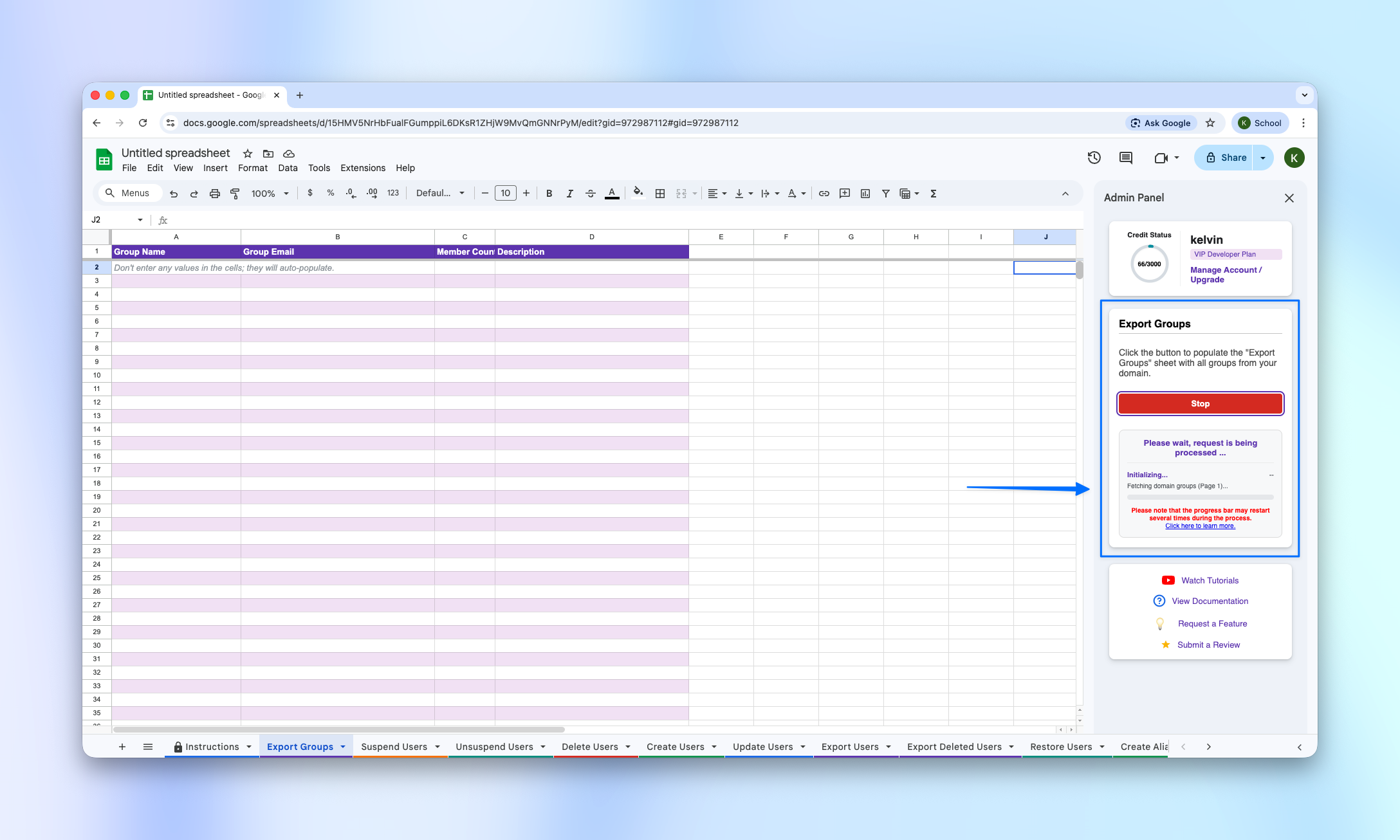
AdminSheet Pro will automatically check your workbook for an existing “Export Groups” tab. If one does not exist, the tool will create a new, properly formatted sheet for you instantly. Important: Please do not rename this sheet tab, as the processing engine relies on the specific tab name to function correctly.
Step 2: Running the Export Process
The export function is one of the simplest operations in AdminSheet Pro because it requires no manual data entry from you.
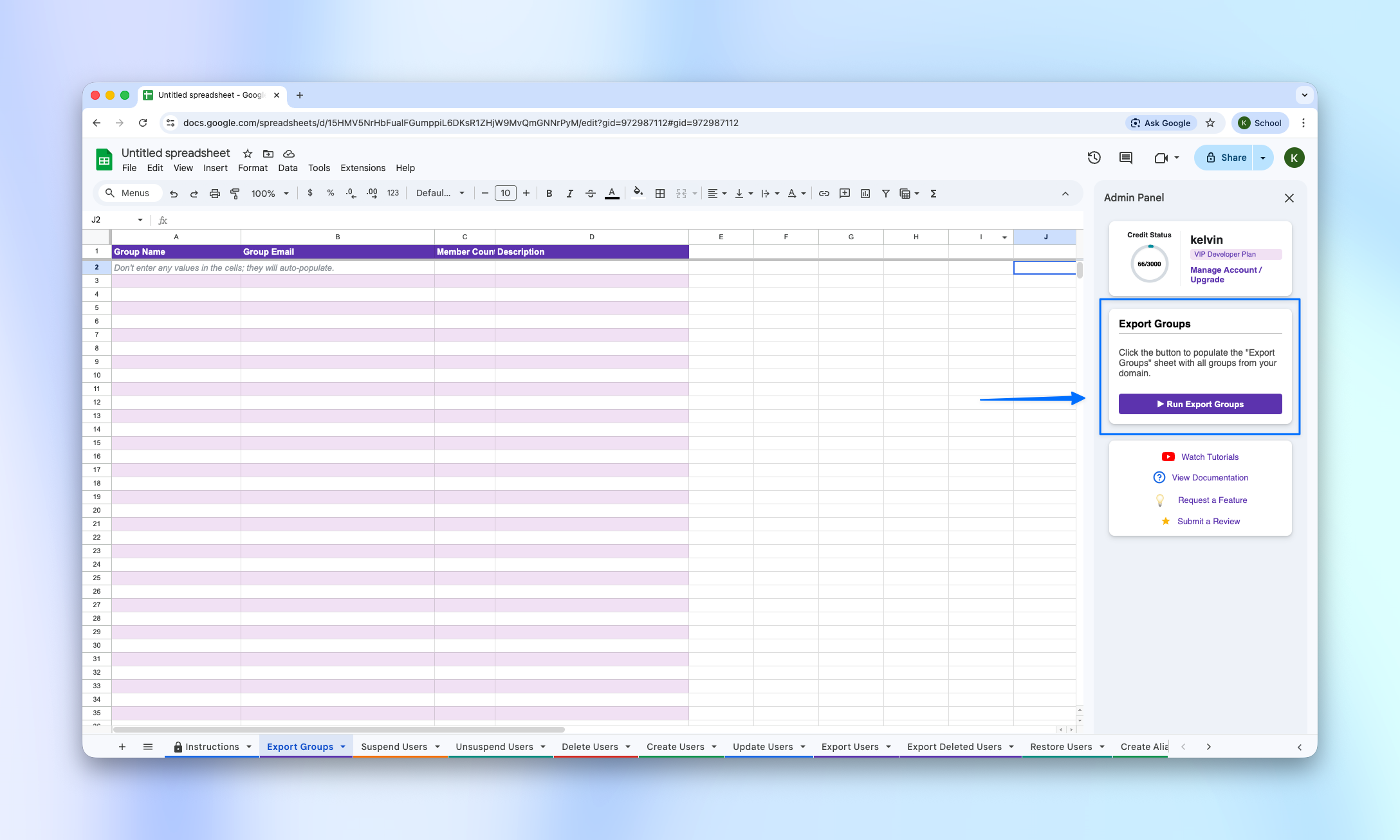
- Once the “Export Groups” sheet is active, open the AdminSheet Pro sidebar (it usually opens automatically when you select the tool).
- Locate the “Run Export Groups” button.
- Click the button to begin the data retrieval process.
Step 3: Understanding the “Processing Engine” Pacing
For administrators managing large domains with hundreds or thousands of groups, Google enforces strict API safety quotas. AdminSheet Pro is built with a sophisticated “Processing Engine” to handle these limits for you:
- The 6-Minute Rule: Google scripts are limited to 6-minute execution windows. If your export takes longer, AdminSheet Pro will automatically pause at the 5.5-minute mark.
- Automatic Restart: The tool will wait for approximately 10 seconds and then automatically restart right where it left off.
- Safety Tip: Do not close your browser tab or refresh the page while the operation is running. You can switch to other tabs, but keep the AdminSheet Pro window open to ensure the process completes successfully.
Step 4: Reviewing Your Exported Data
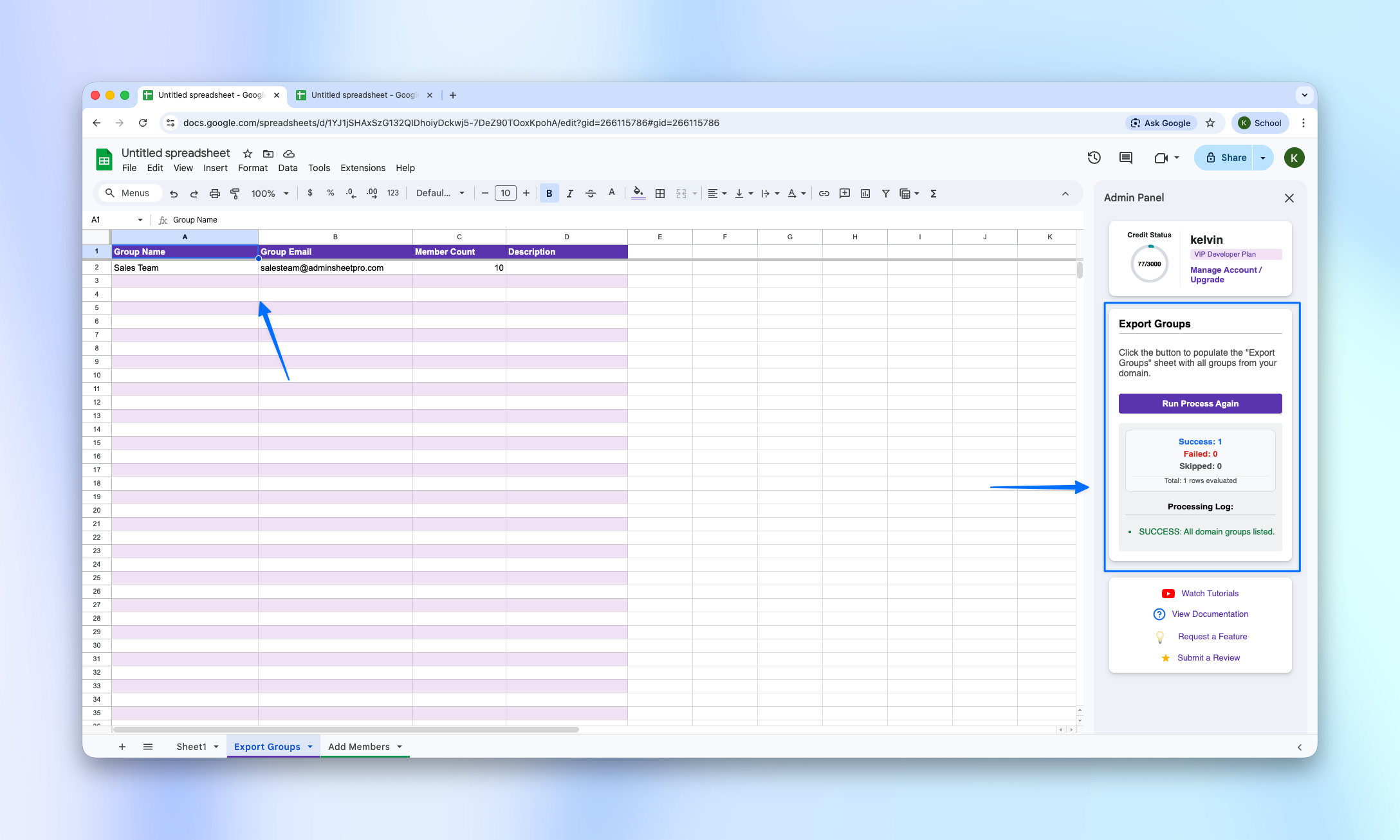
Once the status in the sidebar indicates the job is complete, your sheet will be populated with all relevant group metadata, including:
- Group Email: The primary address of the distribution list.
- Group Name: The display name used in the directory.
- Description: The internal note explaining the group’s purpose.
- Member Count: A real-time count of users currently in the group.
Credits and Billing
At the top of your sidebar, you will see your credit balance. Please note: All Export functions in AdminSheet Pro are always free and unlimited. Running an export will not consume any of your task credits, allowing you to audit your domain as often as necessary without cost.
Visit adminsheetpro.com to activate your “always free” plan today.