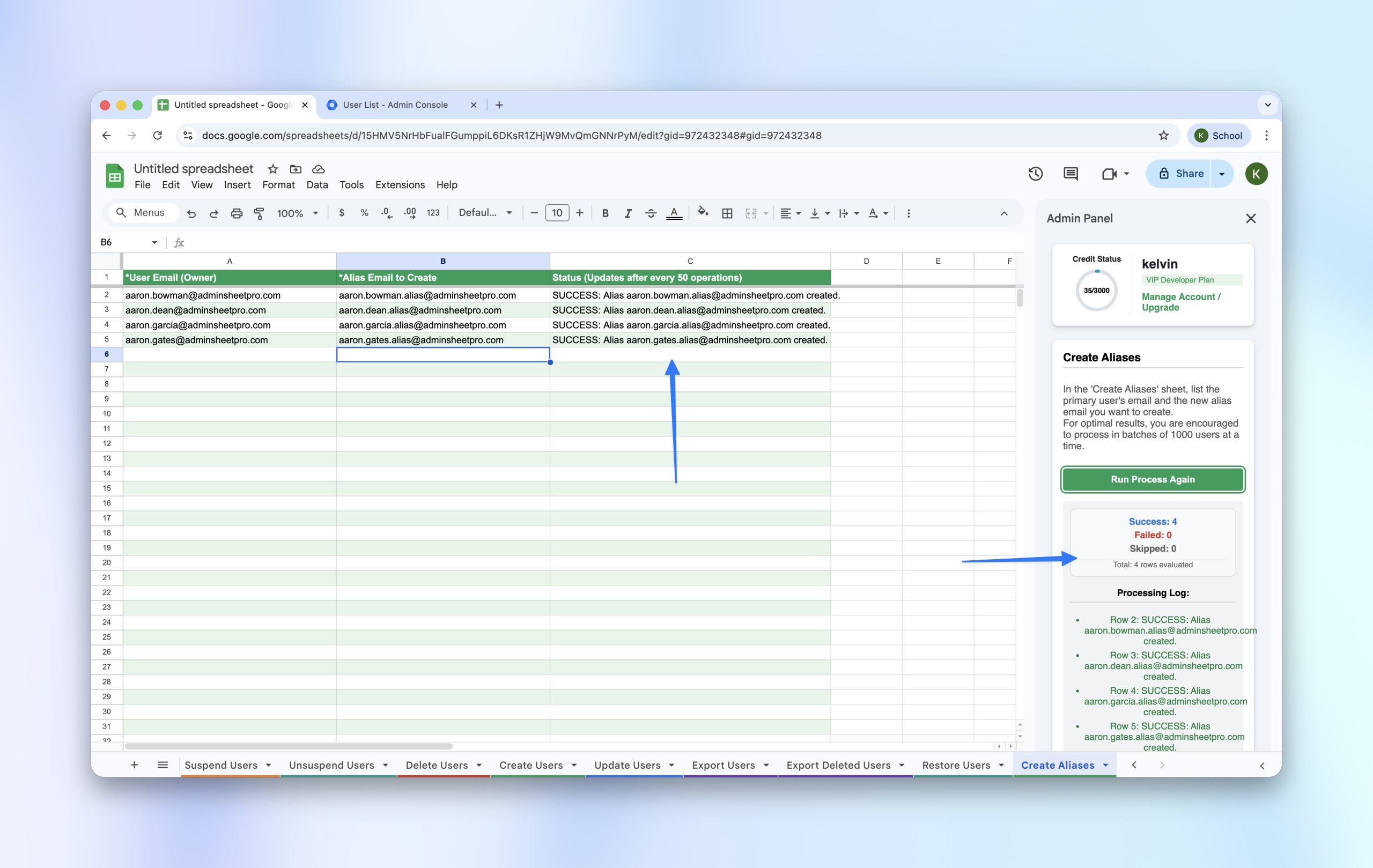
Creating aliases manually in the Admin Console can be time-consuming. With AdminSheet Pro, you can map hundreds of aliases to their respective owners in one go. Email aliases allow users to receive mail at multiple addresses without needing separate accounts. AdminSheet Pro makes it easy to assign these in bulk. In this guide, we will walk through the process of creating aliases for your users.
Step 1: Open the Create Aliases Tool
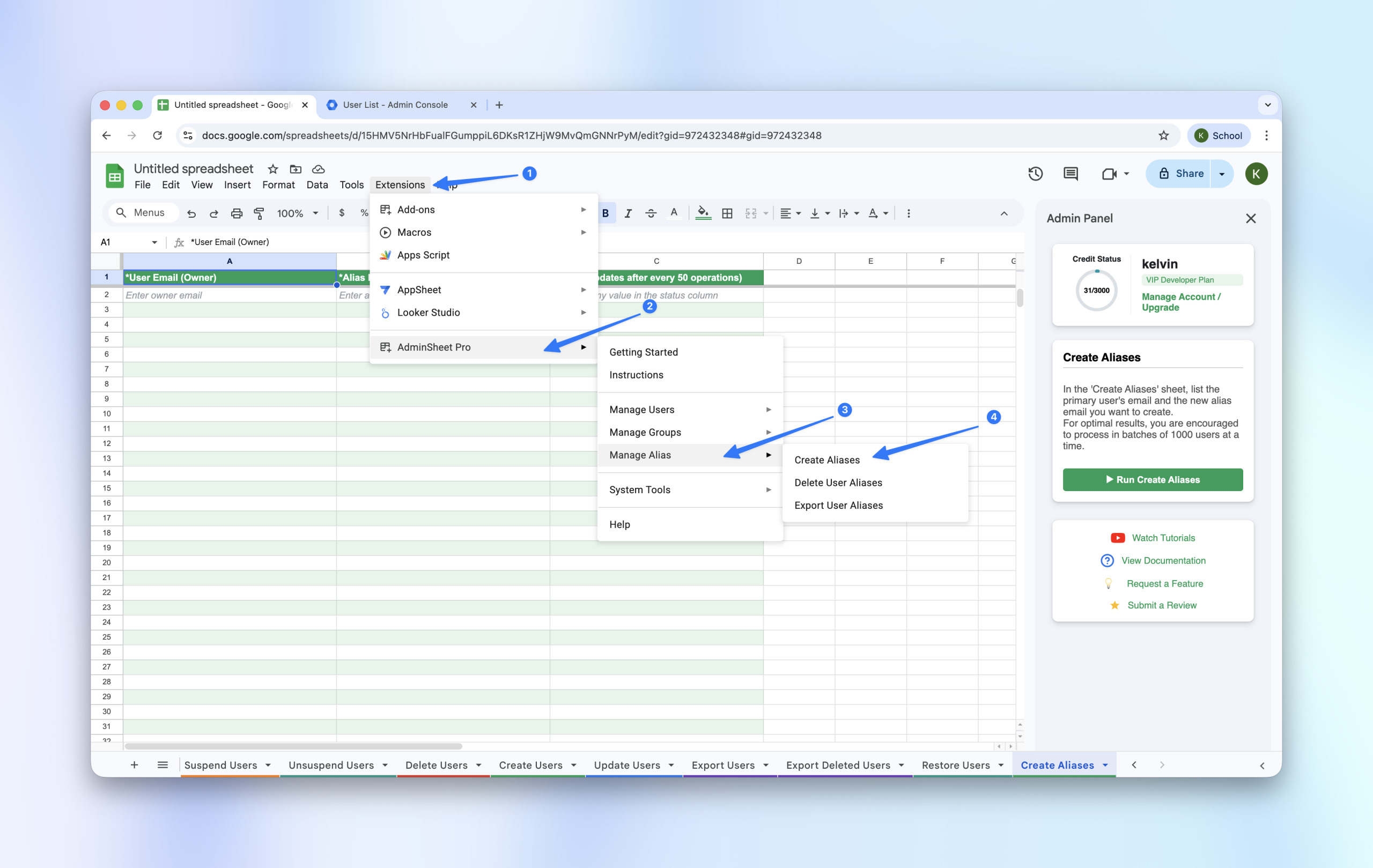
- Open Google Sheets™ and navigate to Extensions > AdminSheet Pro.
- Go to Manage Aliases and select Create Aliases.
- AdminSheet Pro will automatically generate the required sheet tab if it doesn’t already exist.
Step 2: Populate the Data
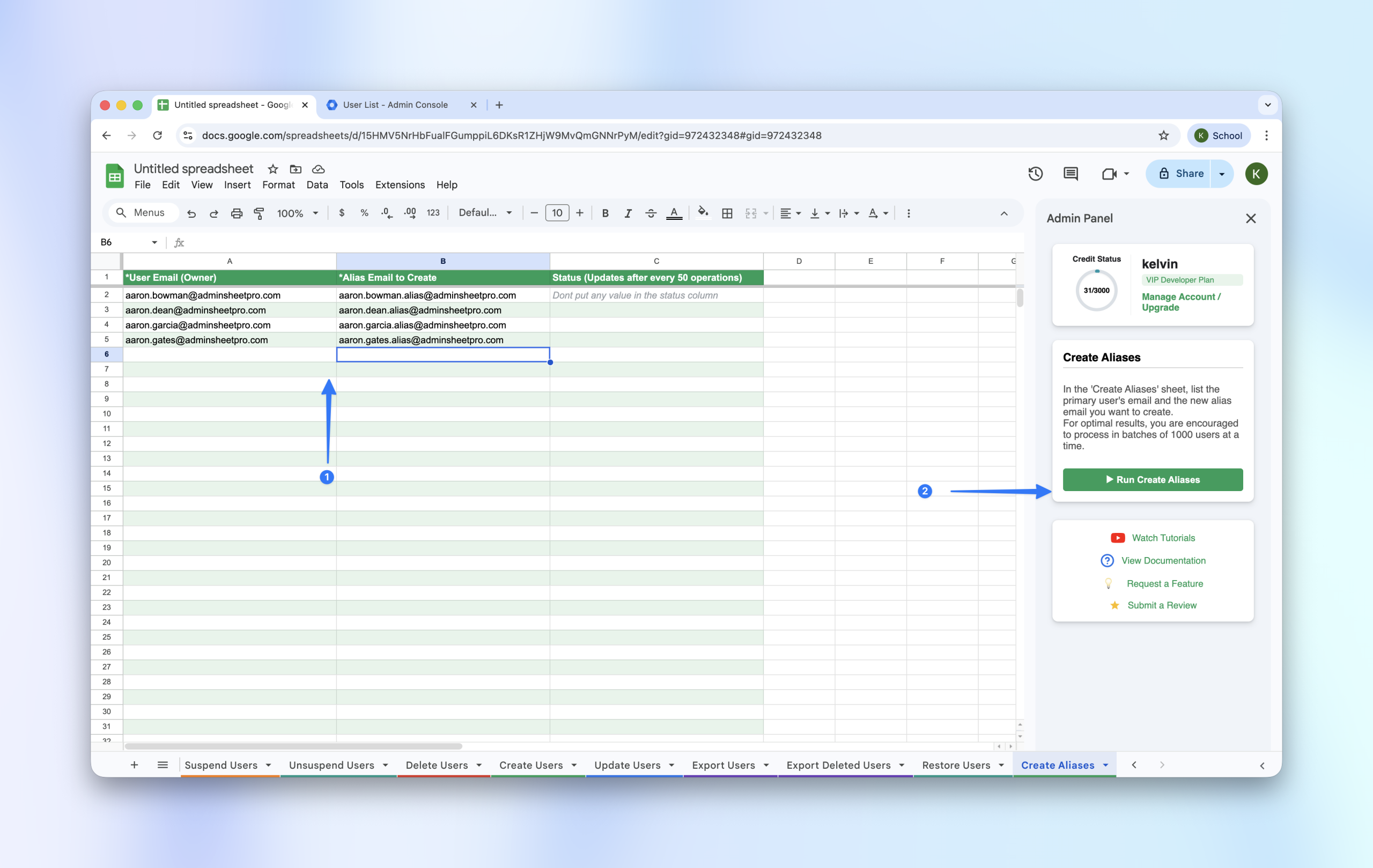
In the generated sheet, focus on the two required columns (marked with an asterisk):
- User Email (Owner) (*): Enter the primary email address of the account that will own the alias.
- Alias Email to Create (*): Enter the new email address you wish to create as an alias.
Step 3: Run the Creation Process
- Open the AdminSheet Pro sidebar.
- Click the “Run Create Aliases” button.
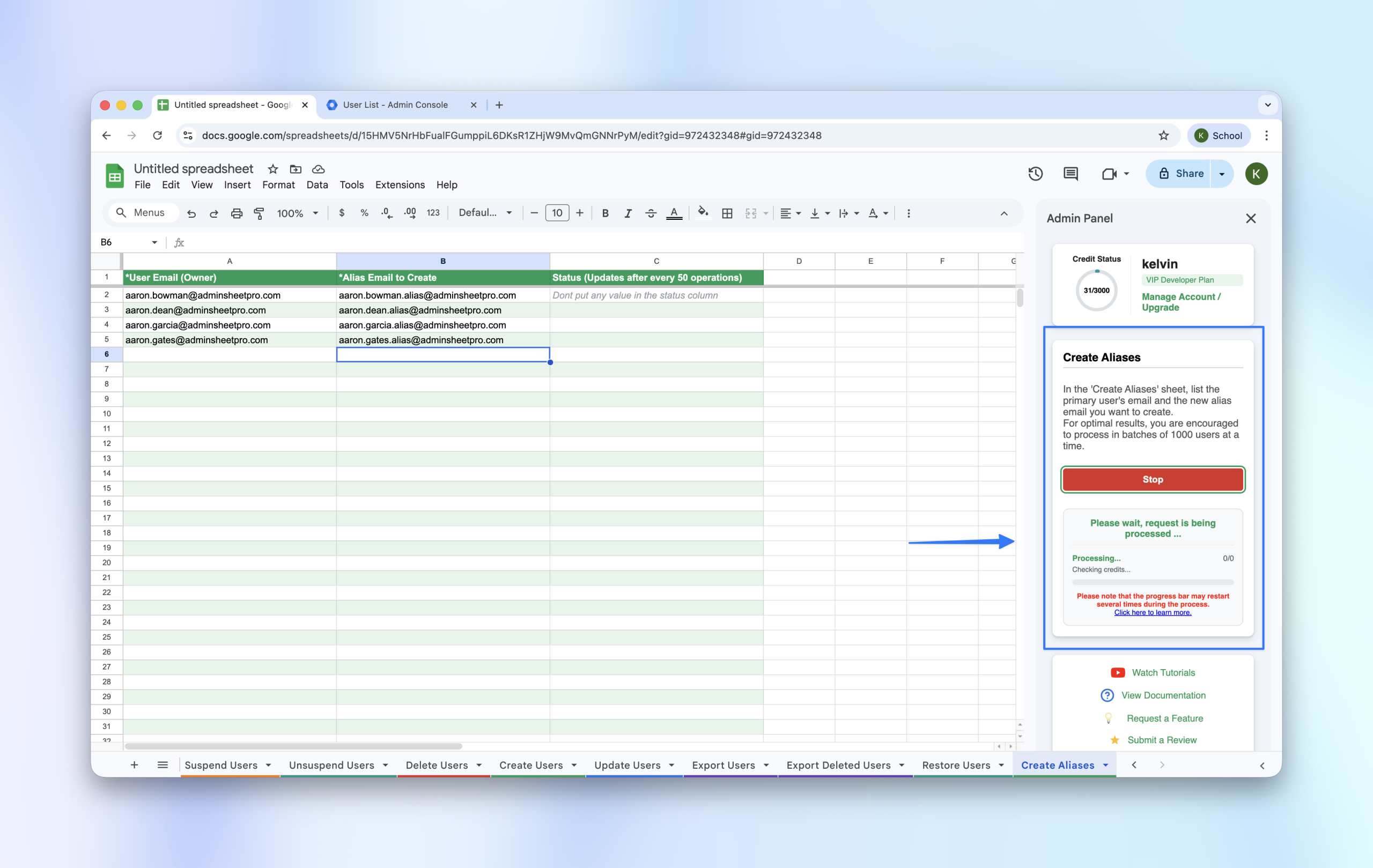
- Monitor the sidebar for progress. The tool will automatically handle Google’s API pacing for you.
Step 4: Verify the Results
Once the Status column shows SUCCESS, you can verify the new aliases by checking the user profiles in your Google Workspace™ Admin Console.