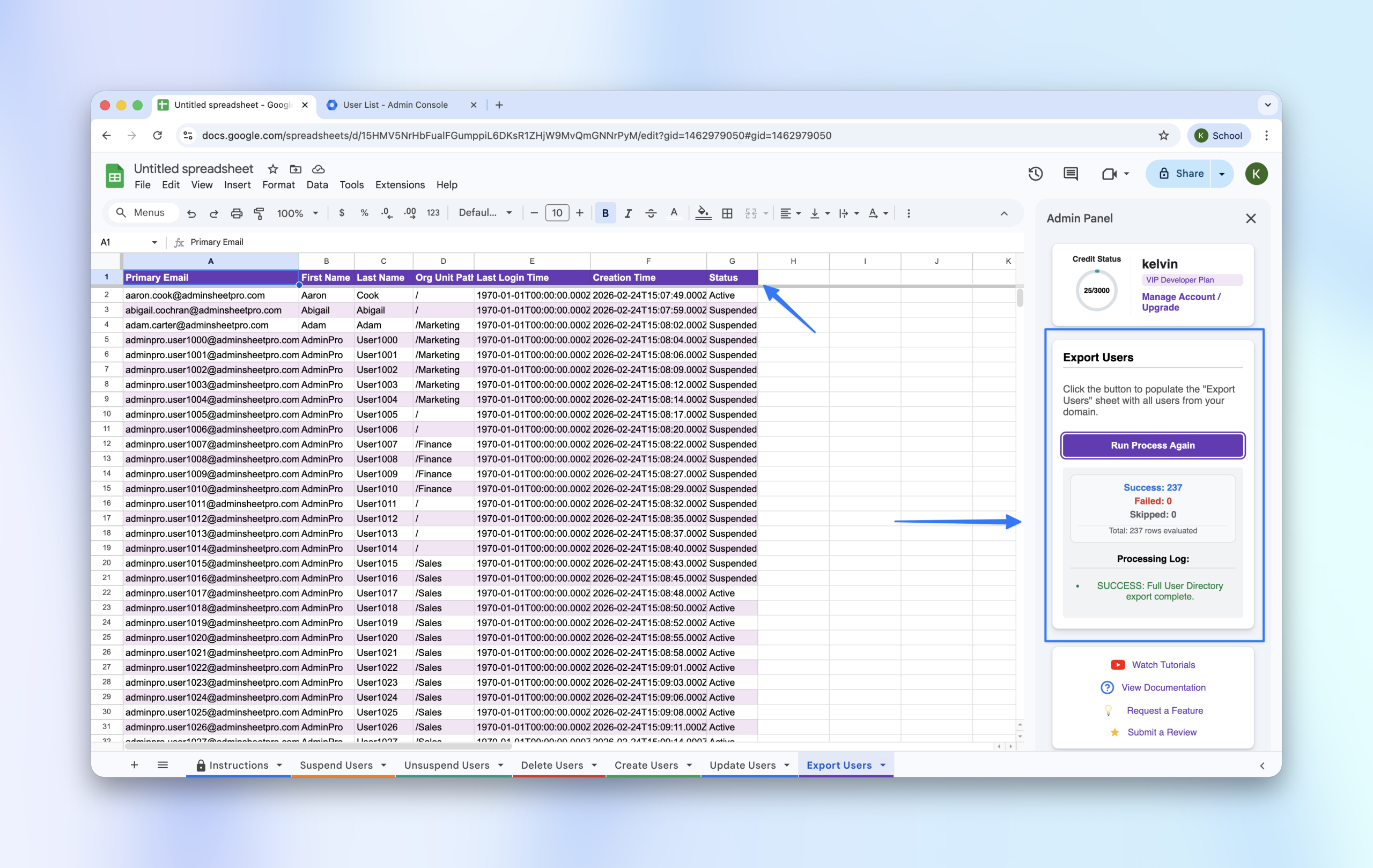
Exporting your user directory is essential for audits, reporting, and mass updates. With AdminSheet Pro, you can generate a complete list of your non-deleted users directly in Google Sheets™ without manually navigating the Admin Console.
Step 1: Open the Export Users Tool
- Open a Google Sheet™.
- Go to Extensions > AdminSheet Pro > Manage Users.
- Click on Export Users.
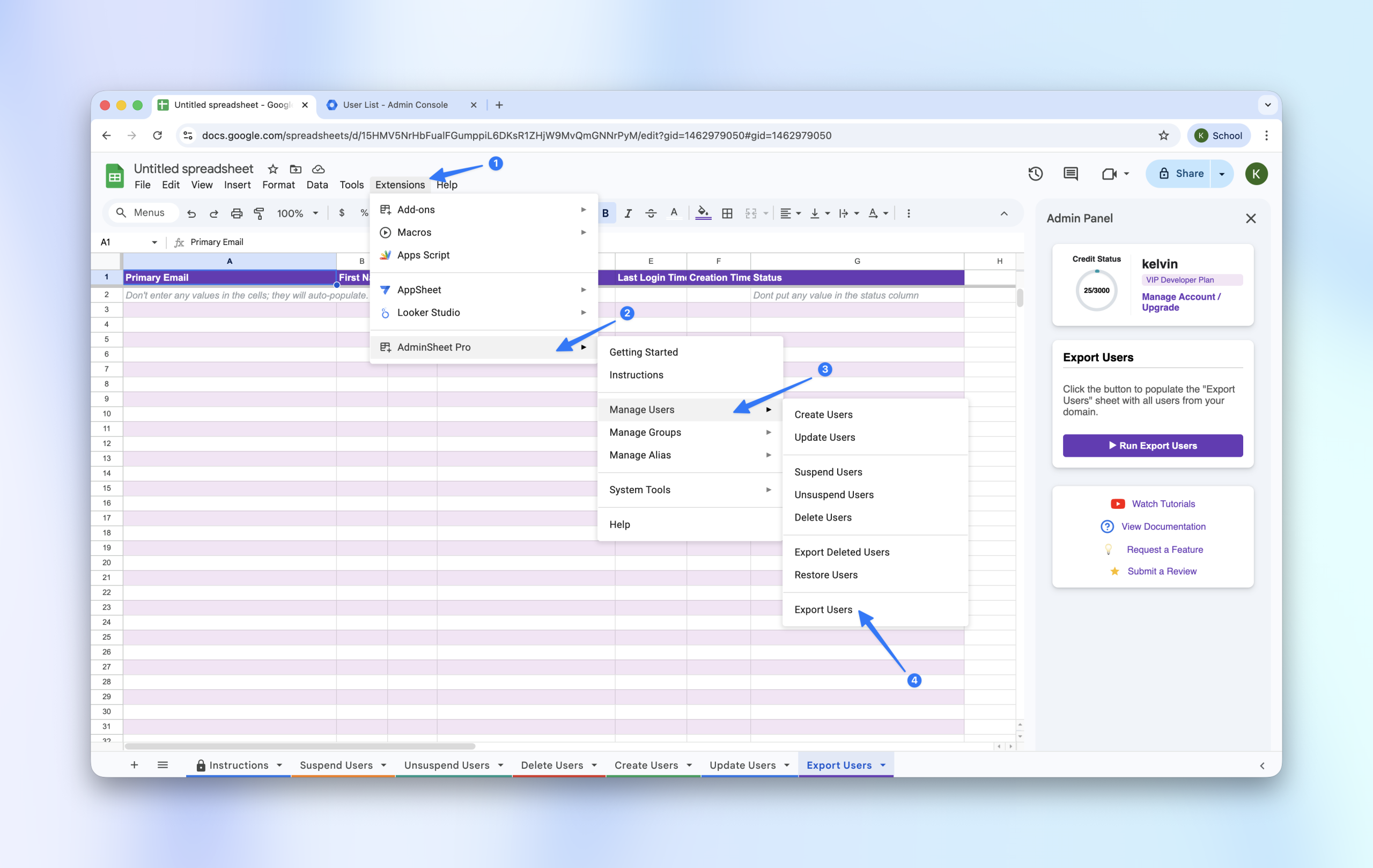
If this is your first time using this feature, AdminSheet Pro will automatically create the required sheet tab.
Step 2: Running the Export
Unlike other functions, Exporting does not require you to input any data. The tool pulls information directly from your Google Workspace™ environment.
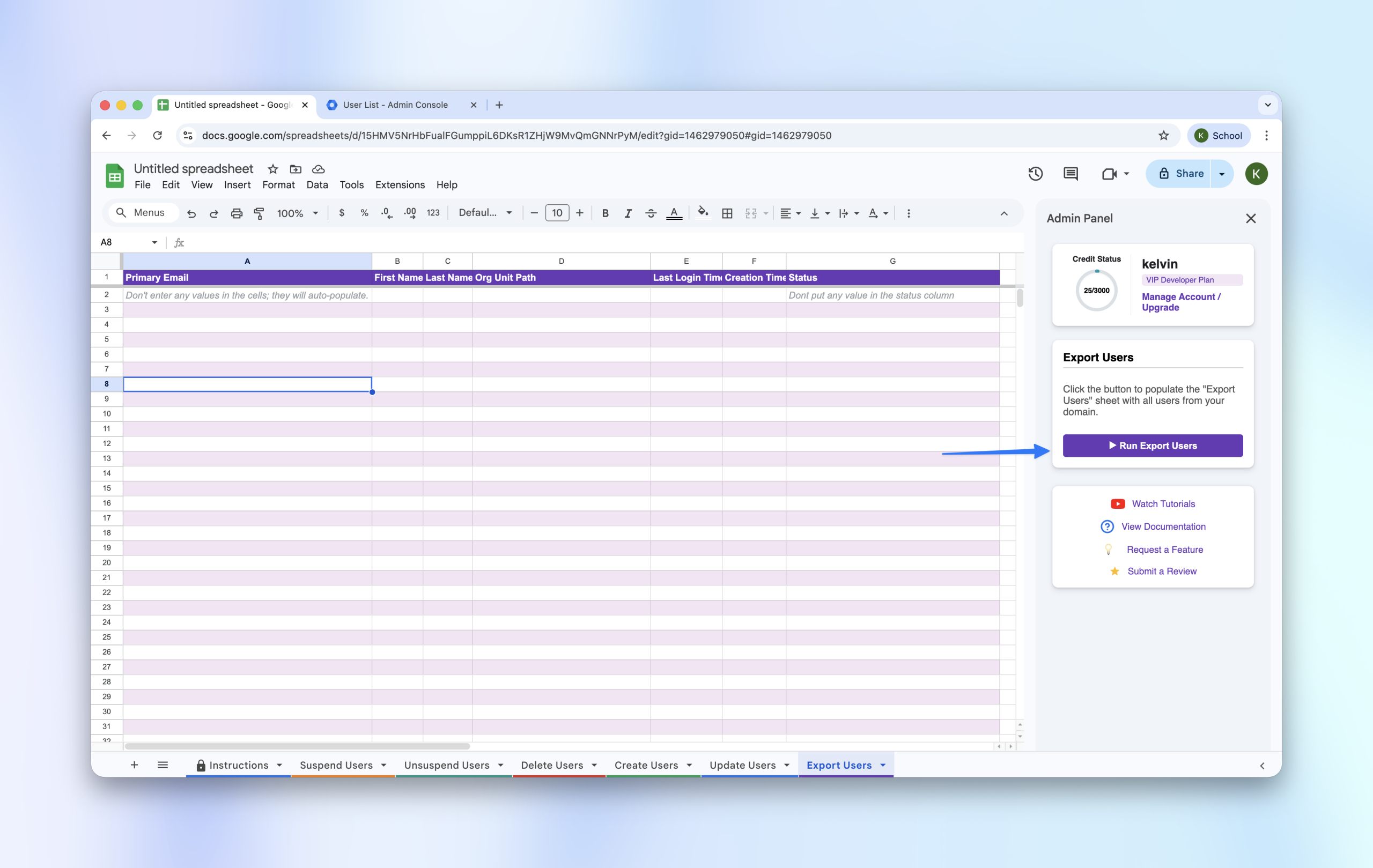
- Open the AdminSheet Pro sidebar.
- Click the “Run Export Users” button.
Step 3: Monitoring Progress
For large domains with thousands of users, the tool will automatically pace the export to stay within Google’s API limits.
- The tool may pause at 5.5 minutes and restart after 10 seconds.
- Do not close your browser during this process.
Step 4: Reviewing Your Data
Once the operation is complete, the sheet will be populated with the following details for all non-deleted users:
- Primary Email Address
- First and Last Name
- Organizational Unit (OU)
- Last Login Time
- Creation Date
- Status (Active or Suspended)