
Welcome to AdminSheet Pro. In this guide, you will learn how to bulk-update existing users in Google Workspace™ using the AdminSheet Pro Google Sheets™ add-on.
Step 1: Open the Update Users Tool
- Open Google Sheets™.
- Click on the Extensions menu and select AdminSheet Pro.
- Navigate to Manage Users and click on “Update Users”.
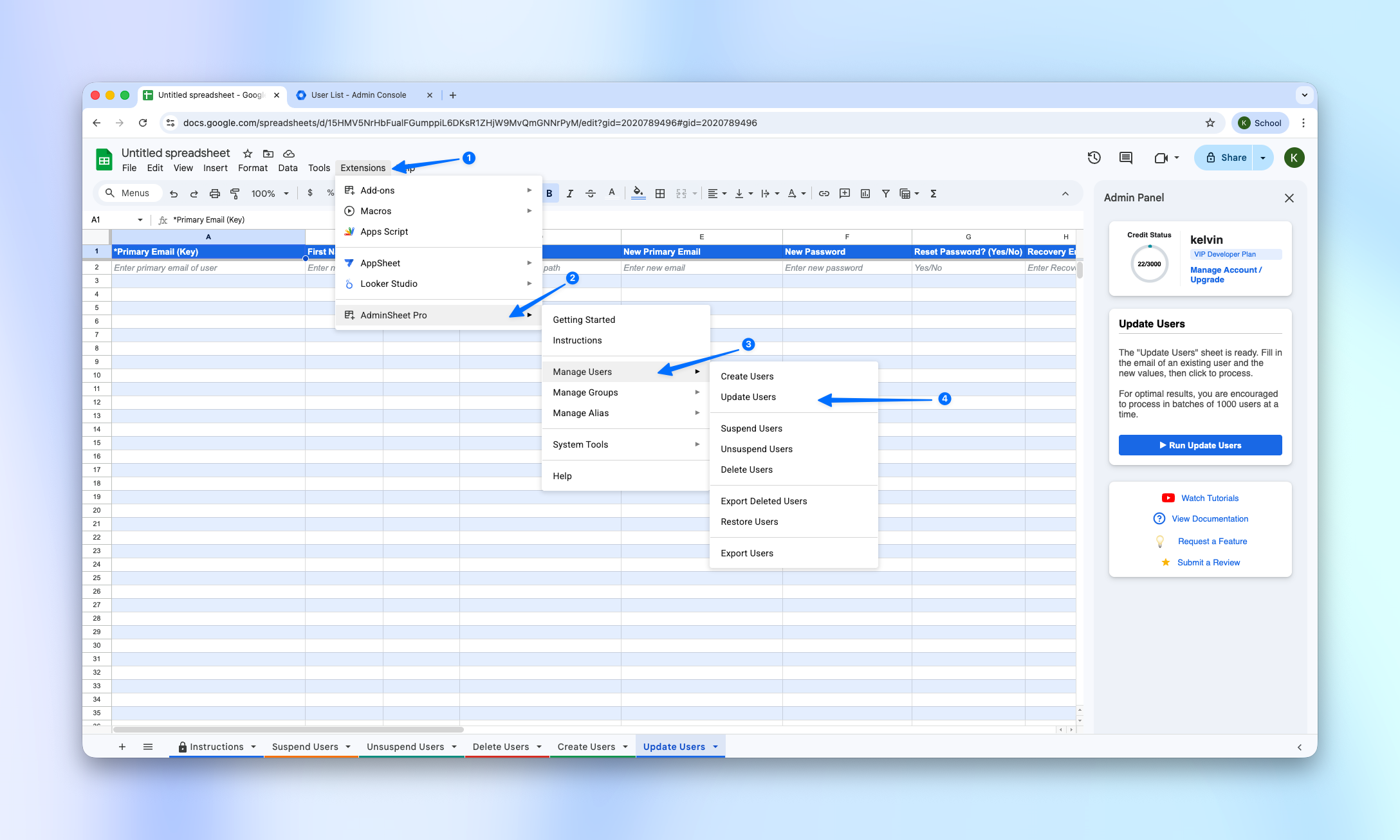
If you haven’t used this feature yet, AdminSheet Pro will automatically create the necessary sheet format at the bottom of your workbook.
Step 2: Populate Your Update Data
Next, populate the sheet with the data you wish to change.
In the Update Users sheet, the only required column is the “Primary Email” column (marked with an asterisk). All other columns are optional—you only need to fill out the columns for the specific information you want to update.
Tip: If you leave a column blank for a user, whatever information is already saved in Google Workspace™ for that user will be preserved.
How to use the optional columns:
- First Name & Last Name: Use these if you need to update a user’s display name.
- Org Unit Path: Use this to bulk-move users to a new Organizational Unit (e.g., from Sales to Marketing).
- New Primary Email: Use this to change a user’s main login email address.
- New Password: Provide a new password to bulk-reset passwords.
- Reset Password? (Yes/No): Set this to “Yes” if you want to force the user to change their password at their next login.
- Recovery Email & Recovery Phone: Update a user’s account recovery details.
- Send Email? (Yes/No): Set this to “Yes” if you want the user to receive an automated notification about these changes.
Prepare your data and paste it into the sheet.
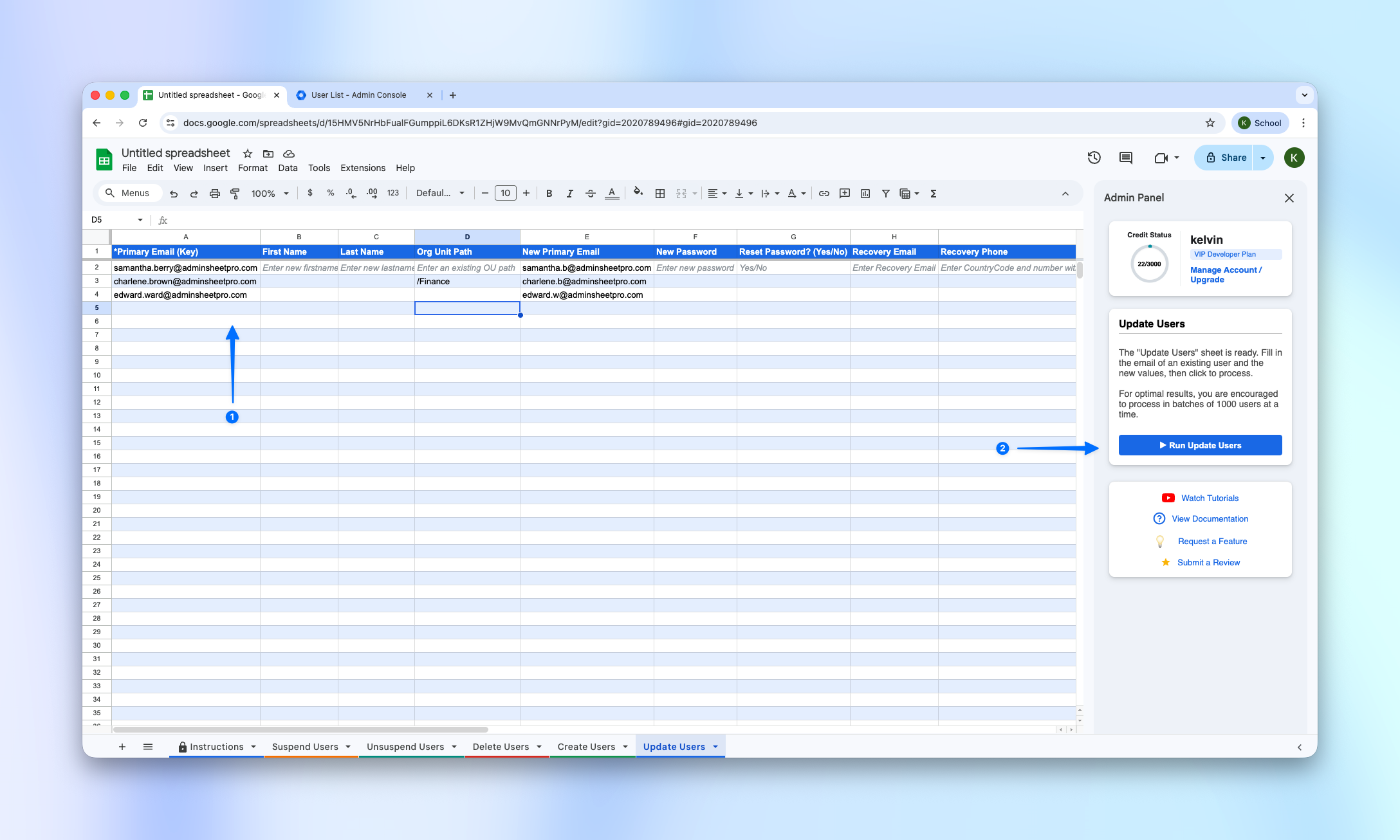
Step 3: Run the Update Process
- Double-check your data.
- Open the AdminSheet Pro sidebar (if it isn’t open already).
- Click the “Run Update Users” button.
You can monitor the progress in the sidebar as AdminSheet Pro updates the users.
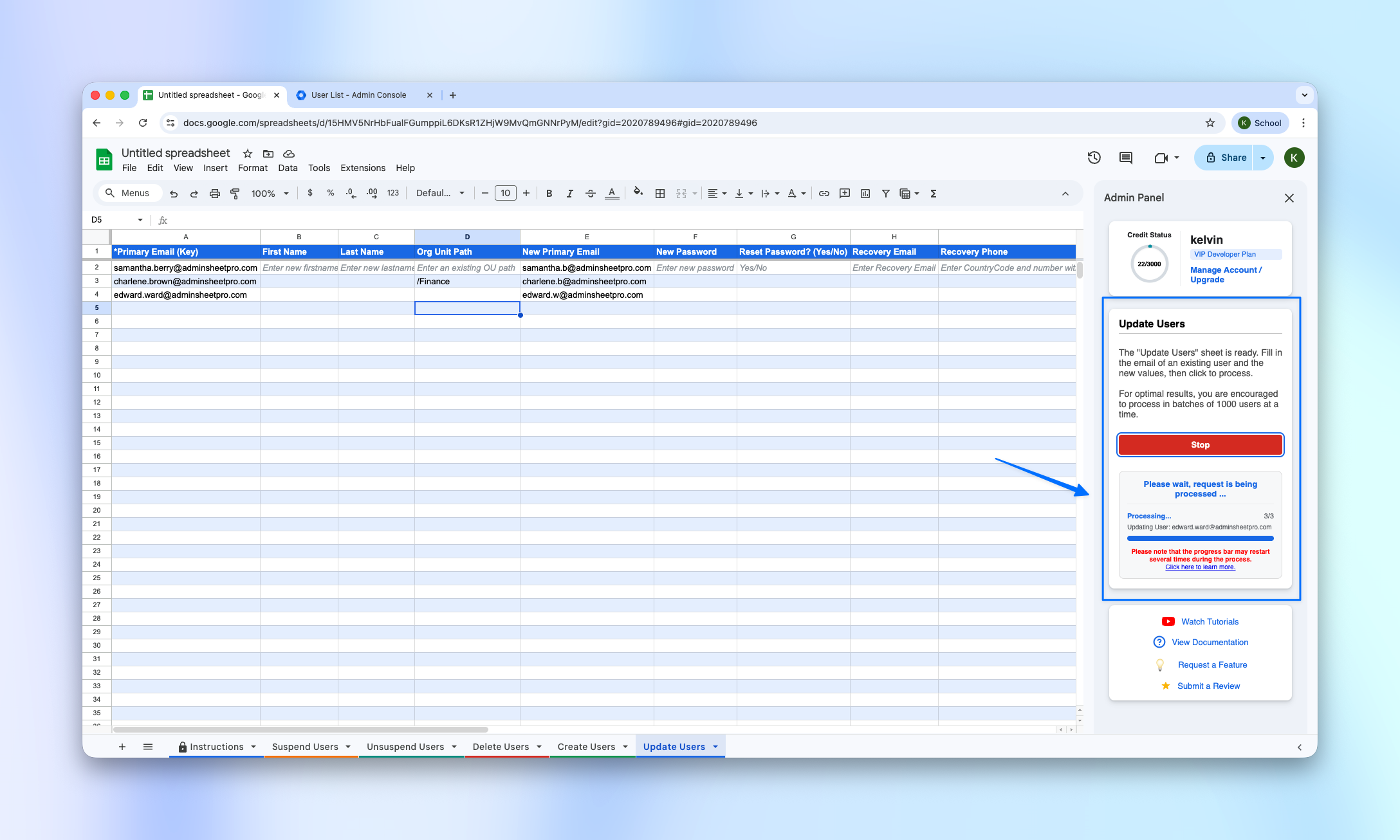
Important Note on Pacing: If you are updating a massive list of users, AdminSheet Pro automatically pauses at the 5.5-minute mark and restarts after 10 seconds to comply with Google’s API limits. Do not close your browser—the tool will automatically resume and handle the processing.
Step 4: Review the Results
AdminSheet Pro will periodically update the Status column on your sheet, writing a SUCCESS or ERROR message for every single row.
When finished, the sidebar will show a summary of successful, failed, and skipped rows.
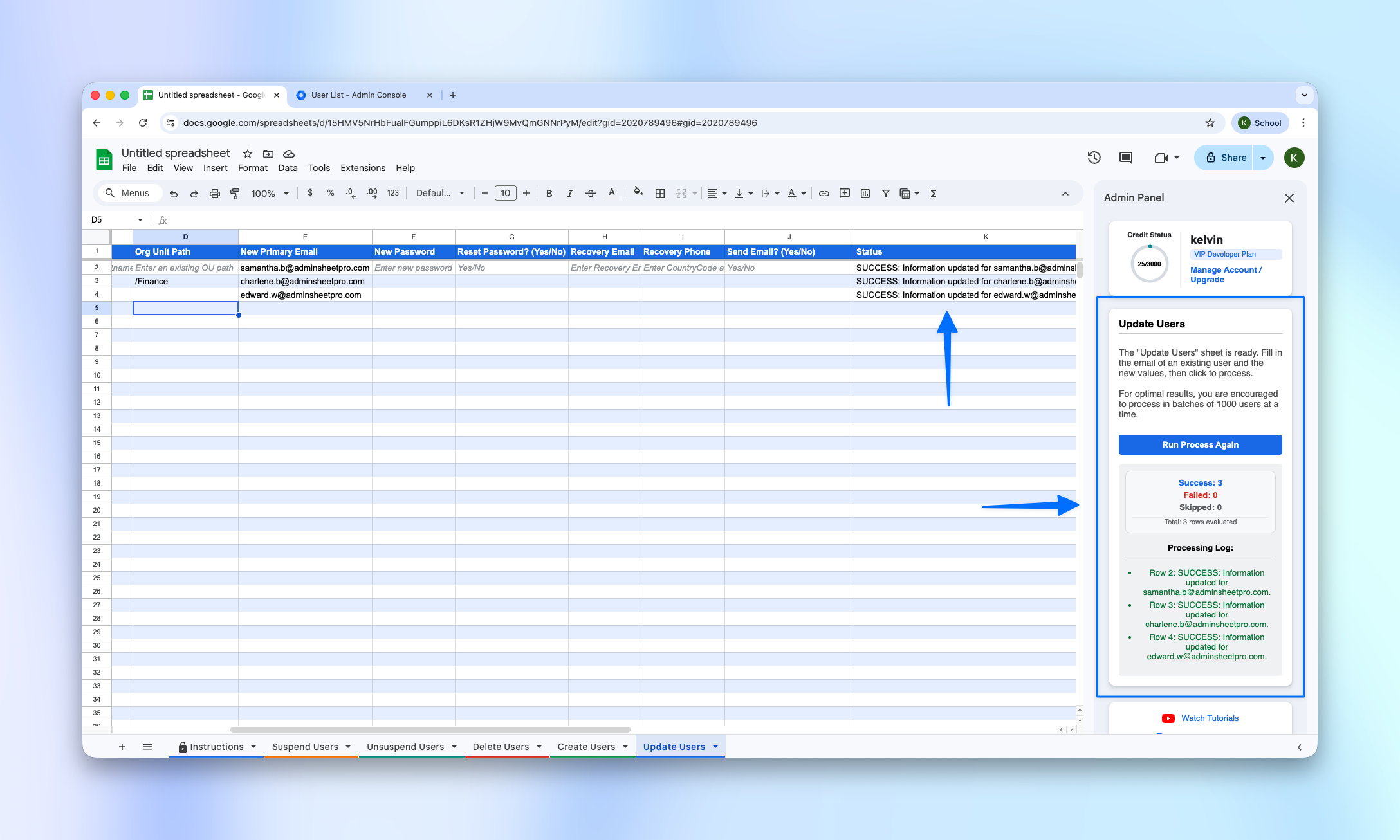
To verify the changes, log into your Google Workspace™ Admin Console and search for the updated users or check their new Organizational Units. Your updates will be reflected instantly.
You can do much more with AdminSheet Pro. For more information, please visit adminsheetpro.com.