
Welcome to AdminSheet Pro. In this guide, you will learn how to quickly bulk-create users in Google Workspace™ using the AdminSheet Pro Google Sheets™ add-on.
Step 1: Open the Create Users Tool
- Open Google Sheets™.
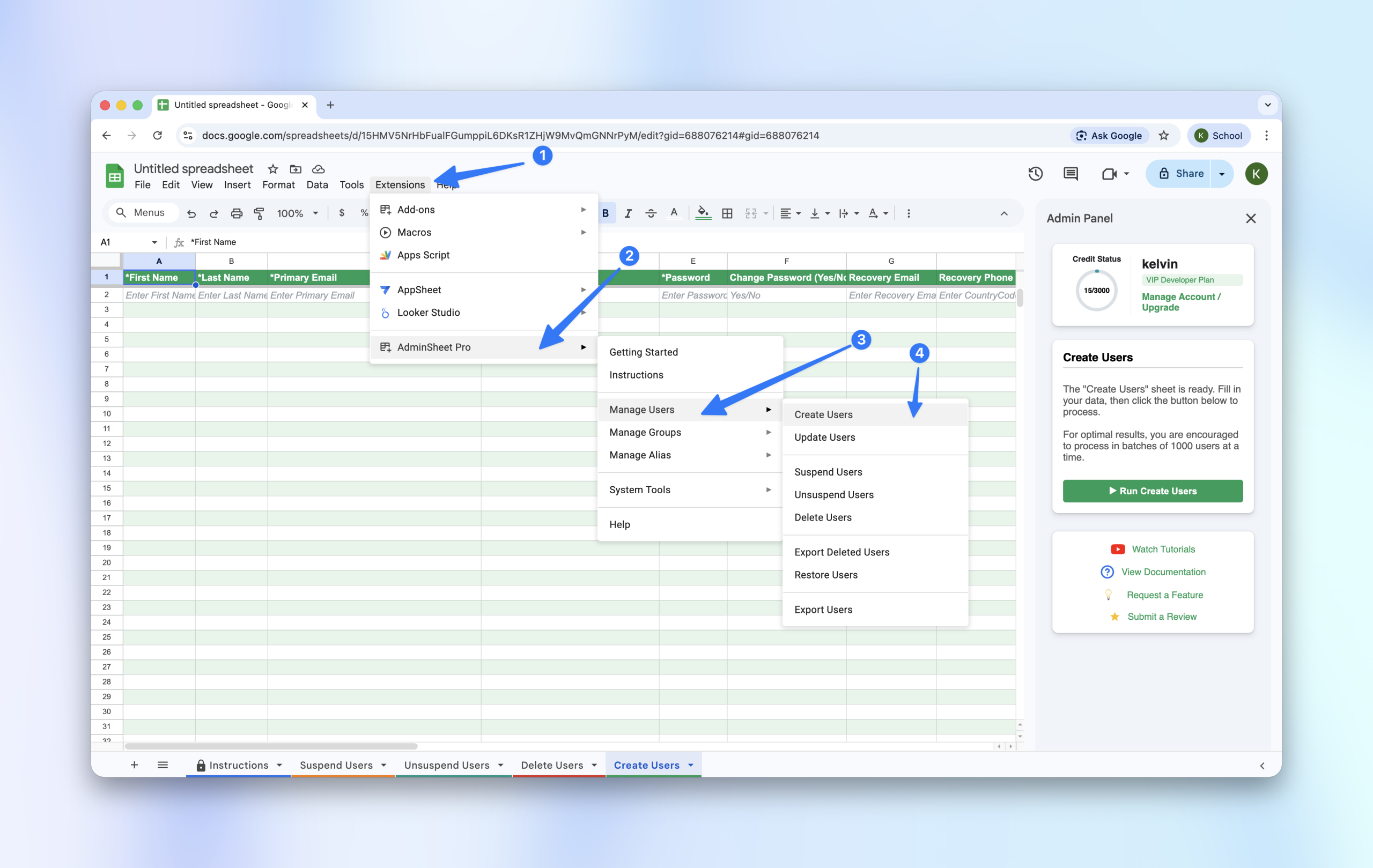
- Click on the Extensions menu and select AdminSheet Pro.
- Navigate to Manage Users and click on “Create Users”.
(If you need help installing the add-on, please refer to our Installation Guide on adminsheetpro.com).
If you have not previously used this feature, AdminSheet Pro will automatically generate the required sheet layout for you.
Step 2: Populate Your Data
Next, you need to populate the sheet with the users you want to create.
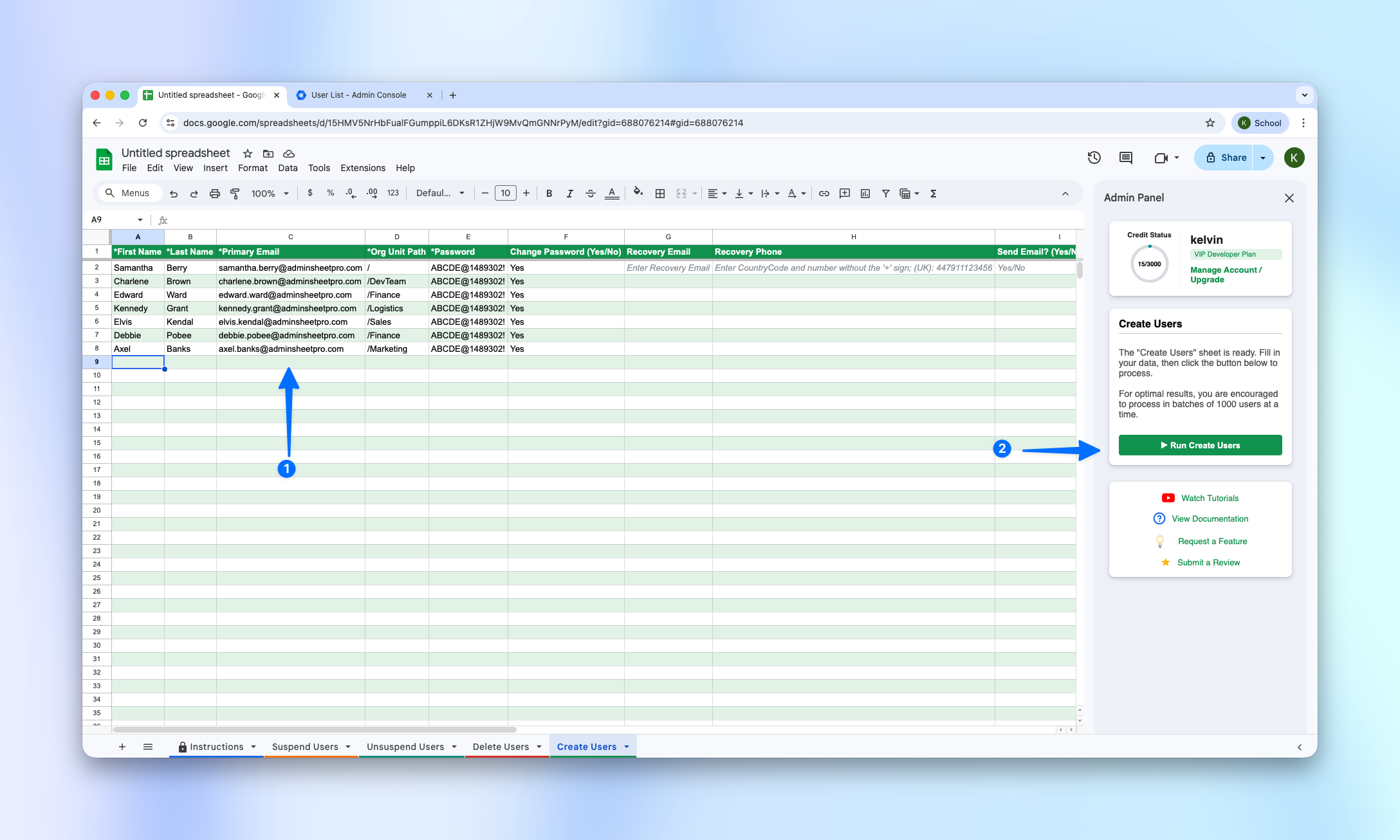
Look at the column headers. The columns denoted with an asterisk (*) are required fields. This includes information like the First Name, Last Name, Primary Email, Password, and Org Unit Path. Columns without an asterisk (like Recovery Email or Recovery Phone) are optional.
Tip: We have provided additional details and formatting instructions on the second row of the sheet.
Formatting your data:
- Prepare your list of users and paste them into the appropriate columns.
- For the Org Unit Path, input the specific organizational unit you want the user placed in.
- Note: Use a forward slash (
/) for users you want placed in the root directory without a specified organizational unit.
Step 3: Run the Creation Process
Before running the tool, you can verify in your Google Workspace™ Admin Console that these users do not currently exist in your directory.
- Go back to your Google Sheet™.
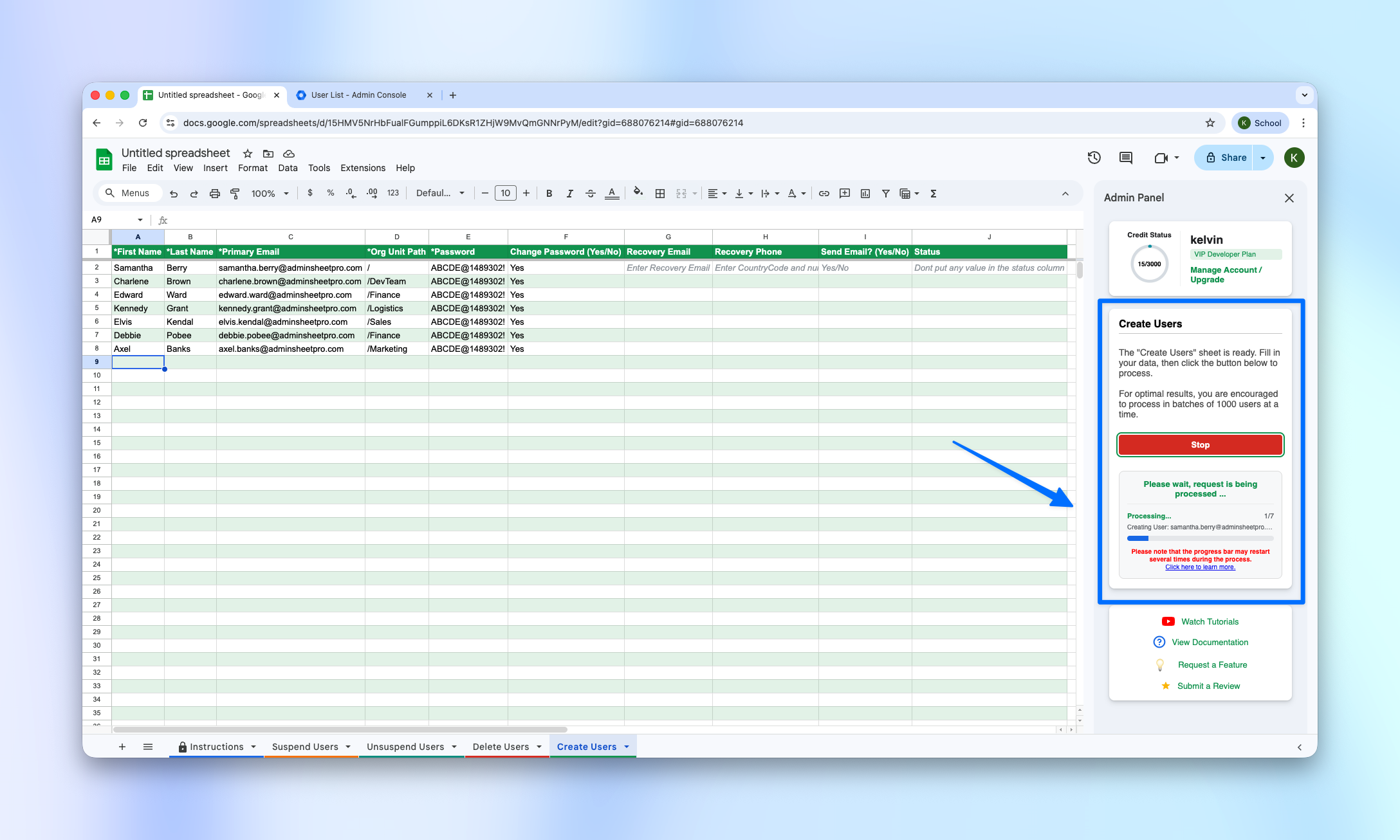
- Click on the “Run Create User” button located in the sidebar.
In the second section of the sidebar, you can monitor the progress as AdminSheet Pro processes your list.
Important Note on Pacing: If you are processing thousands of rows, AdminSheet Pro will automatically pause at 5.5 minutes and restart after 10 seconds. This automatic pacing keeps the operation within Google’s safety limits. Please do not close your browser during this time. AdminSheet Pro handles everything automatically.
Step 4: Review the Results
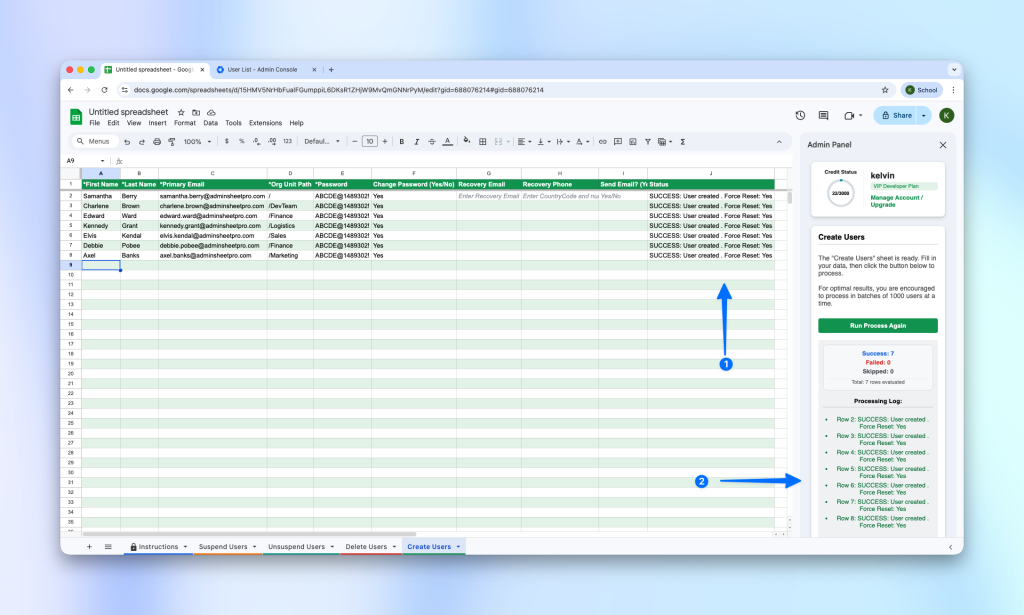
As the tool works, it periodically updates the Status column in your spreadsheet. It will write a SUCCESS or ERROR message for every single row you process.
When the job is complete, the sidebar will display a summary showing the number of successful rows, failed rows, and skipped rows.
Finally, head over to your Google Workspace™ Admin Console. Check your user directory and the specified Organizational Units. You will see that all your new users have been successfully created!
You can do much more with AdminSheet Pro. For more information, please visit adminsheetpro.com.